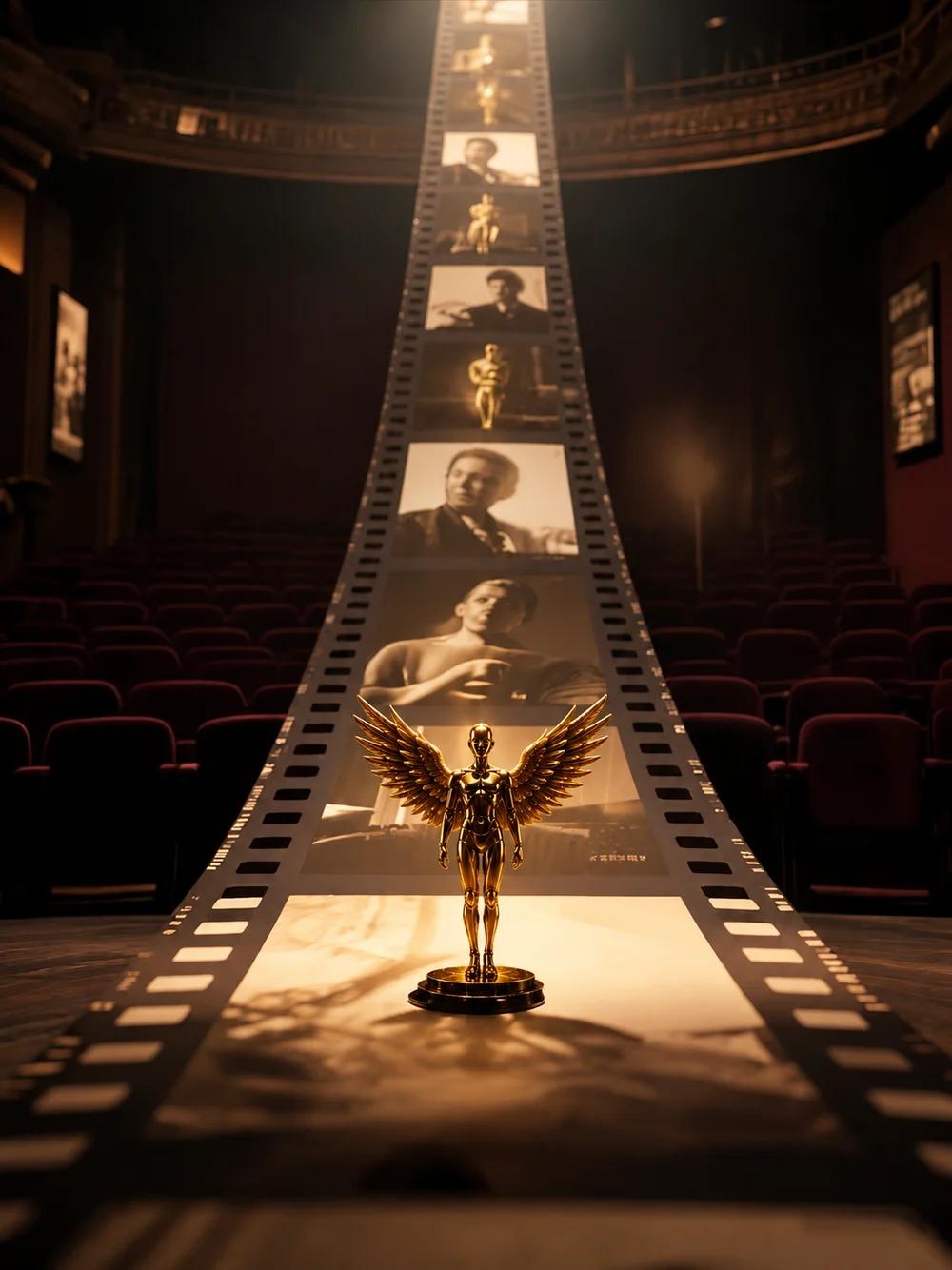
Zopia × SVAiFF
2026 Los Angeles–Silicon Valley AI Film Festival
Create with AI. Be seen by the world.
Submission deadline ·
200 Zopia Universal Credits + 800 Vidu Credits
Credit eligibility and redemption follow the campaign terms.
View eventZopia × SVAiFF
Create with AI. Be seen by the world.
Submission deadline ·
200 Zopia Universal Credits + 800 Vidu Credits
Credit eligibility and redemption follow the campaign terms.
View event
Zopia × YFCon
Zopia at YFCon 2026: connecting with creators and industry partners through AI creation.
Zopia exhibitor · Ended · 2026.10.08–10.09
Anaheim Convention Center · Hall A
Booth B14

Zopia × AIGC ASIA
Celebrate Eastern culture with AI and share new cultural visions with the world.
Gold awards in two tracks, ¥20,000 each
Register and receive 1,000 credits
Sep 1–Oct 11
More creative possibilities, more rewards
Create without limits · Earn without limits
Platform challenges
Create with AI. Share your boundless imagination.
Great ideas deserve to be seen
CREATORS
MAKE A BRIGHTER WORLD
Platform challenges
Invite friends to top up and earn cashback rewards.
Create together, grow together
TOGETHER
WE CREATE MORE
Creator partnerships
Invite friends or apply as an affiliate and earn rewards.
Connect with creators. Grow together.
CREATE TOGETHER
GROW TOGETHER
Zopia AI is an end-to-end AI directing system that turns a one-line idea into a publish-ready video. This practical guide covers the full workflow: script generation, character and scene consistency, storyboard control, video rendering, timeline editing, and multi-episode automation with OpenClaw.
What still blocks scale is continuity: story logic across scenes, character and environment consistency, and control over a complex production workflow. That is exactly what Zopia AI is built for.
Zopia is not just a video generator. It is an end-to-end AI production system coveri scriptwriting, storyboarding, video generation, and timeline editing, designed for creators and teams that need stable, repeatable output.
This guide follows a real workflow: starting from a natural-language idea and ending with a publish-ready short drama or video.
Step 1. How Zopia Works: A Full Pipeline, Started by Conversation
In most AI video stacks, creators bounce between disconnected tools: script apps, image generators, video models, and editing software.
The result is high overhead and weak consistency. Zopia unifies the process into one continuous pipeline:
Script generation → Character/scene asset building → Storyboard generation → Video
rendering → Timeline assembly → Final export
The interface is conversational. Zopia helps break down steps, confirms key
checkpoints, and lets you intervene at any stage.
Step 2. Start a Project with Natural Language
Go to zopia.ai (https://zopia.ai), log in, and create a new project.
2.1 Enter Your Idea (Prompt)
Describe your concept in plain language:
- Content type: short drama, ad, motion comic
- Visual style: realistic, anime, 3D
- Emotional rhythm: high-energy, suspenseful, warm
Example:
- Genre: cyberpunk suspense short
- Audience: sci-fi fans, thriller binge-watchers
- One-line hook: “A female hacker runs through the rain-soaked city, chased by someone
who turns out to be her former partner.”
You do not need complex prompt engineering.
You can also upload your own script and click Create to send it into Zopia’s full
production flow.
2.2 Review and Edit the Script
After the script agent generates a draft, you can:
- Review full text in the Script panel
- Directly edit plot points, relationships, and pacing
- Ask for revisions in chat (for example: “add a twist in act two”)
The script remains editable throughout the project.
Step 3. Core Setup: Format, Model, and Workflow
Before visual generation, set the basics.
3.1 Aspect Ratio and Resolution
- Aspect ratio: 16:9 (YouTube, web) or 9:16 (TikTok, Reels, Shorts)
- Image size: up to 4K
- Video output: up to 1080p (Seedance 2.0 supports up to 720p)
3.2 Choose a Video Model
Zopia supports multiple models, including:
- Seedance 2.0 (member feature): strong for live-action shorts, motion, and facial-
expression stability
- Kling / Vidu: useful for stylized or animated outputs
You can switch models later without rebuilding the entire project.
3.3 Pick a Workflow Mode
- Multi-parameter parallel direct output: fastest, lower credit use
- Storyboard grid → image-to-video: highest controllability for complex narratives
- Multi-parameter sequential generation: best consistency for fight scenes and
continuous action
For first-time users, storyboard-grid mode is usually the easiest way to understand
shot structure.
Step 4. Character and Scene Assets: Build Reusable Visual Foundations
After script confirmation, Zopia auto-generates characters, scenes, and key props.
4.1 Character Setup
- Auto-detects characters from script and generates visual identities
- Supports edits to wardrobe, hairstyle, and personality cues
- Allows local reference image upload for tighter control
Character assets are locked and reused across scenes/episodes for consistency.
4.2 Scene and Multi-View Generation
- Generates main view plus side/back views
- Multi-view assets improve spatial logic and shot continuity
- Everything is centralized on the canvas for asset management
Step 5. Storyboarding: From Static Structure to Motion
5.1 Generate Storyboards
In storyboard-grid mode:
1. Generate a multi-panel storyboard
2. Review and fine-tune each panel
3. Convert to video shots in one click
This catches narrative issues before render, reducing expensive rework.
5.2 Edit Shot-by-Shot
Per shot, you can:
- Change prompt/model/reference image
- Insert new shots
- Drag-and-drop between canvas assets and storyboard cells
Step 6. Audio-Video Generation and Timeline Assembly
6.1 Audio + Video Generation
With supported models (including Seedance 2.0), Zopia can:
- Generate dialogue and ambient sound
- Sync lip movement with timing
- Keep a fixed character voice or use uploaded audio
You can disable audio generation to save credits.
6.2 Timeline Editing
Rendered shots are automatically assembled in timeline order:
- Shot order follows script logic
- Transitions and duration are auto-matched
- Basic trim and preview are built in
Goal at this stage: get to publish-ready, not heavy post-production.
Step 7. Multi-Episode Production and OpenClaw Automation
7.1 Multi-Episode Continuity
Click Create Next Episode to continue the series:
- Existing characters/scenes are inherited
- New characters are auto-detected and added
- Assets remain managed within one project space
7.2 OpenClaw Integration for Automation
By connecting Zopia Skill to OpenClaw, teams can:
- Trigger creation remotely by chat
- Run multi-episode generation asynchronously in parallel
- Operate 24/7 with minimal manual intervention
This is especially useful for high-frequency publishing teams.
Step 8. US/UK Use Cases: How Teams Apply This in Practice
Use Case A: Short-form vertical content for TikTok/Shorts/Reels
- Format: 9:16
- Workflow: storyboard-grid for control + fast iteration
- Team: 1 creator or small social team publishing daily
Use Case B: Product marketing story ads for SaaS
- Format: 16:9 for YouTube + repurpose to 9:16
- Workflow: script variations for different ICPs (SMB vs enterprise)
- Team: growth + content marketers running weekly campaigns
Use Case C: Serialized fiction channels
- Format: mixed (teaser vertical, full horizontal)
- Workflow: sequential generation for character continuity
- Team: creator studio releasing episodic content
Use Case D: Internal training and customer education
- Format: 16:9
- Workflow: reusable scene/character assets for consistent brand style
- Team: L&D, customer success, support operations
Why This Matters Now
The biggest opportunity in AI-native video is no longer “can you generate a clip?”
It is “can you produce high-quality episodes repeatedly, with consistent narrative and style?”
That is where an end-to-end directing system changes the game.
Start Building
Don’t let strong ideas get stuck in fragmented tooling.
Create your project at zopia.ai (https://zopia.ai) and start shipping publish-ready video faster.
If you run a studio or agency, ask about team collaboration and volume p
Start creating professional AI videos with Zopia
Get Started Free