Zopia × SVAiFF
2026 Los Angeles–Silicon Valley AI Film Festival
Create with AI. Be seen by the world.
Submission deadline ·
200 Zopia Universal Credits + 800 Vidu Credits
Credit eligibility and redemption follow the campaign terms.
View eventZopia × SVAiFF
Create with AI. Be seen by the world.
Submission deadline ·
200 Zopia Universal Credits + 800 Vidu Credits
Credit eligibility and redemption follow the campaign terms.
View event
Zopia × YFCon
Zopia at YFCon 2026: connecting with creators and industry partners through AI creation.
Zopia exhibitor · Ended · 2026.10.08–10.09
Anaheim Convention Center · Hall A
Booth B14
Zopia × AIGC ASIA
Celebrate Eastern culture with AI and share new cultural visions with the world.
Gold awards in two tracks, ¥20,000 each
Register and receive 1,000 credits
Sep 1–Oct 11
More creative possibilities, more rewards
Create without limits · Earn without limits
Platform challenges
Create with AI. Share your boundless imagination.
Great ideas deserve to be seen
CREATORS
MAKE A BRIGHTER WORLD
Platform challenges
Invite friends to top up and earn cashback rewards.
Create together, grow together
TOGETHER
WE CREATE MORE
Creator partnerships
Invite friends or apply as an affiliate and earn rewards.
Connect with creators. Grow together.
CREATE TOGETHER
GROW TOGETHER
Plan a readable shot, prepare useful reference material and evaluate Vidu Q4 Preview footage within a real editing sequence.
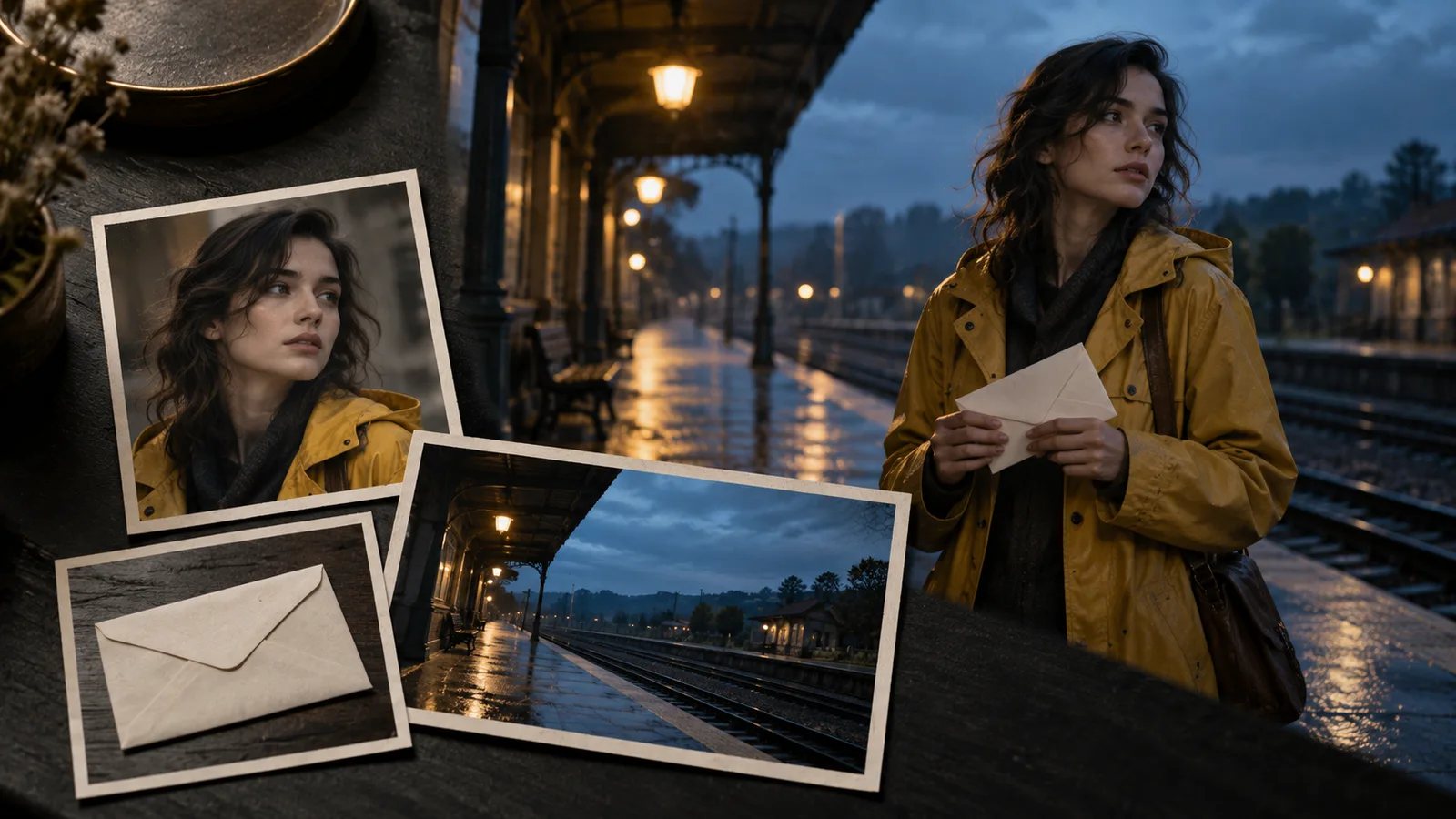
To start a Vidu Q4 Preview project on Zopia, choose a shot with one clear purpose, prepare references for the details that matter, and judge the result inside your edit. A character noticing an open doorway is a better first task than a scene combining a crowd, a fight and several location changes.
The courtyard exercise below combines a reaction, a reverse view and an object detail. Together, these shots create a small scene with a recognizable space and a reason for the character to pause.
Open the current model selector and look for Vidu Q4 Preview. Inspect the inputs offered by that mode and check the task's displayed output options and credit estimate, then prepare the following exercise around those controls.
For your first task, write a short brief: the viewer must see a traveler recognize a courtyard entrance. Keep the shot simple enough that you can tell whether the action worked. Decide the intended final aspect ratio before creating supporting images.
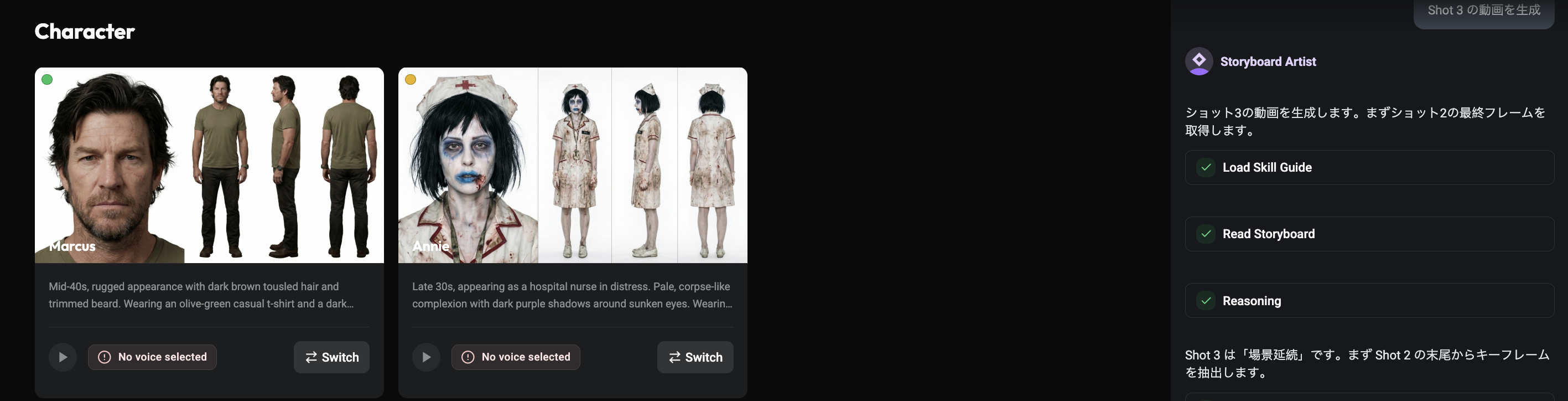
Separate identity, environment and action. Identity material should show the subject clearly, with a recognizable hairstyle and wardrobe. Environment material should establish the doorway, light and spatial arrangement. The action is what changes during the shot.
Use only the reference controls available in your selected mode. If the interface supports an image for the subject, choose an uncluttered view with visible identifying details. If another attachment role is available, explain its purpose. Do not assume a written filename automatically connects an asset.
Avoid using inconsistent character designs as if they describe one person. When one image has a long coat and another a short jacket, decide which design is approved first. A reference set should resolve creative decisions, not delegate contradictory ones to the model.
| Shot | What the viewer should understand | Character position | Connection |
|---|---|---|---|
| Entrance reaction | The traveler recognizes this place | Outside, looking toward the left | Cut to the space being observed |
| Courtyard view | The familiar place is now quiet | At the threshold | Cut to an object left behind |
| Door-ring detail | Memory settles on a specific object | Character may stay out of frame | Return to the face or end the scene |
Decide where the doorway sits before choosing the direction of the look. Preserve its shape, wall material and light direction between views. These details make continuity more concrete than repeating “consistent cinematic style.”
Distribute the reference information by shot size. The reaction needs a clear face and collar. The wide view needs body shape, jacket length and entrance position. The detail needs object texture. A single atmospheric reference rarely answers every one of these questions equally well.
Use this example for the entrance reaction:
Medium shot of a traveler in a charcoal jacket at the entrance to a quiet courtyard. The traveler notices an open doorway, pauses and turns toward it. The camera stays at eye level and moves gently closer. Overcast daylight, realistic stone textures, restrained color. Keep the jacket, hairstyle and courtyard architecture consistent throughout the shot.
The emotional intent is recognition. The visible actions are pausing and turning. If “recognition” alone produces an exaggerated expression, describe a small physical response: the traveler stops walking, lifts their gaze and holds the look. You can then select the most readable moment in the edit.
If the chosen mode accepts a character reference, add an instruction assigning that reference to appearance. Keep environmental instructions separate so the face reference does not unintentionally dictate the entire location.
If the traveler keeps walking, begin with “standing still at the doorway, then lifting their gaze.” If the expression becomes exaggerated, ask for relaxed features and a held look rather than adding stronger emotional adjectives. Revise the performance without unnecessarily replacing the building, wardrobe and color palette.
One attractive clip does not establish a workable sequence. Plan a second view that answers the first: what is beyond the doorway? For example:
Fixed wide shot from inside the same courtyard, looking toward the open entrance. A wooden chair sits in a patch of soft daylight. The traveler remains at the threshold, facing into the courtyard. Preserve the stone walls and charcoal jacket. Keep the composition quiet and readable.
Compare doorway shape, light direction, wardrobe and screen direction. If the geometry differs, adjust the reference material or use a close detail to bridge the views.
Close view of a worn brass door ring on an old wooden door. Soft overcast light reveals the surface wear. Fixed camera, with the stone wall gently out of focus behind it. A small edge of charcoal sleeve rests near the bottom of the frame; the hand does not touch the ring. Keep the ring shape, wood grain and light direction stable.
This shot has one job: show the object. If the story needs the door to open, you can follow a hand approaching with a separate view of the already open doorway. Breaking a contact action into shots can preserve a clear event without demanding every physical detail in one continuous clip.
The reaction can begin after the traveler has stopped and finish on a held gaze. The courtyard view can begin with an empty space and end when the traveler stands at the threshold. If every clip ends mid-step, the editor may struggle to find a natural cut.
Prepare the closing composition for what comes next. A glance toward the side of the door can motivate the ring insert. A character placed near the edge can leave room for the courtyard reveal. These choices are easier to make before generation than to repair by adding unrelated shots later.
When a face changes, use a clearer approved reference and reduce simultaneous movement. When the body turns unnaturally, split the turn and the step into separate shots. When a camera move distracts from the reaction, try a fixed camera. When the location transforms, simplify the background and keep the environment reference unambiguous.
If the action happens too quickly, ask for a pause and a held final pose, then trim around the available performance. Exact editorial timing still belongs in the sequence. Do not label a result a model defect until you have checked whether the brief, input material or requested action was itself conflicting.
Keep the useful clip, the prompt and the settings visible in your workspace together. That record explains the conditions of your own result without turning a single attempt into a universal performance claim.
| Symptom | First adjustment | Editing option |
|---|---|---|
| Overplayed recognition | Stop, lift the gaze and hold | Use the quietest readable interval |
| Changing entrance geometry | Clarify the doorway reference | Separate the views with a detail |
| Changing jacket or sleeve | Reuse one approved wardrobe design | Inspect the close-to-wide cut |
| Distracting camera drift | Try a fixed frame | Let the cut provide the rhythm |
Place the reaction and courtyard view together first. Use temporary ambience to judge how long the silence should last, then add the door ring or an empty-chair detail only if it contributes new information. Do not keep showing the entrance merely to increase the number of clips.
For a festival project, retain your source material, generated clips and editing notes by project. When preparing an AI-use statement, you can distinguish generated imagery, compositing, third-party music and source photographs accurately, while keeping credits organized.
Review the footage at normal speed first. Can a viewer understand the reaction without reading the prompt? Then inspect hands, faces, contact with the floor and changing objects. Finally, place it next to the adjacent shot and check continuity.
Begin your own two-shot exercise in Zopia. Confirm the current Preview options, make the recognition shot and evaluate it beside the courtyard reveal before planning a larger sequence.
Create a character reaction followed by the space or object they notice. Focus on eyelines and the relationship between adjacent shots.
Keep doorways, windows, light direction and character orientation consistent. Add suitable references or bridge the views with a prop close-up.
Check the current model and task settings in Zopia, then prepare references for the available inputs and modes.
Start creating professional AI videos with Zopia
Get Started Free