Zopia × SVAiFF
2026 Los Angeles–Silicon Valley AI Film Festival
Create with AI. Be seen by the world.
Submission deadline ·
200 Zopia Universal Credits + 800 Vidu Credits
Credit eligibility and redemption follow the campaign terms.
View eventZopia × SVAiFF
Create with AI. Be seen by the world.
Submission deadline ·
200 Zopia Universal Credits + 800 Vidu Credits
Credit eligibility and redemption follow the campaign terms.
View event
Zopia × YFCon
Zopia at YFCon 2026: connecting with creators and industry partners through AI creation.
Zopia exhibitor · Ended · 2026.10.08–10.09
Anaheim Convention Center · Hall A
Booth B14
Zopia × AIGC ASIA
Celebrate Eastern culture with AI and share new cultural visions with the world.
Gold awards in two tracks, ¥20,000 each
Register and receive 1,000 credits
Sep 1–Oct 11
More creative possibilities, more rewards
Create without limits · Earn without limits
Platform challenges
Create with AI. Share your boundless imagination.
Great ideas deserve to be seen
CREATORS
MAKE A BRIGHTER WORLD
Platform challenges
Invite friends to top up and earn cashback rewards.
Create together, grow together
TOGETHER
WE CREATE MORE
Creator partnerships
Invite friends or apply as an affiliate and earn rewards.
Connect with creators. Grow together.
CREATE TOGETHER
GROW TOGETHER
Choose a camera movement by what the shot needs to reveal, then describe direction, speed and subject action in a focused video prompt.
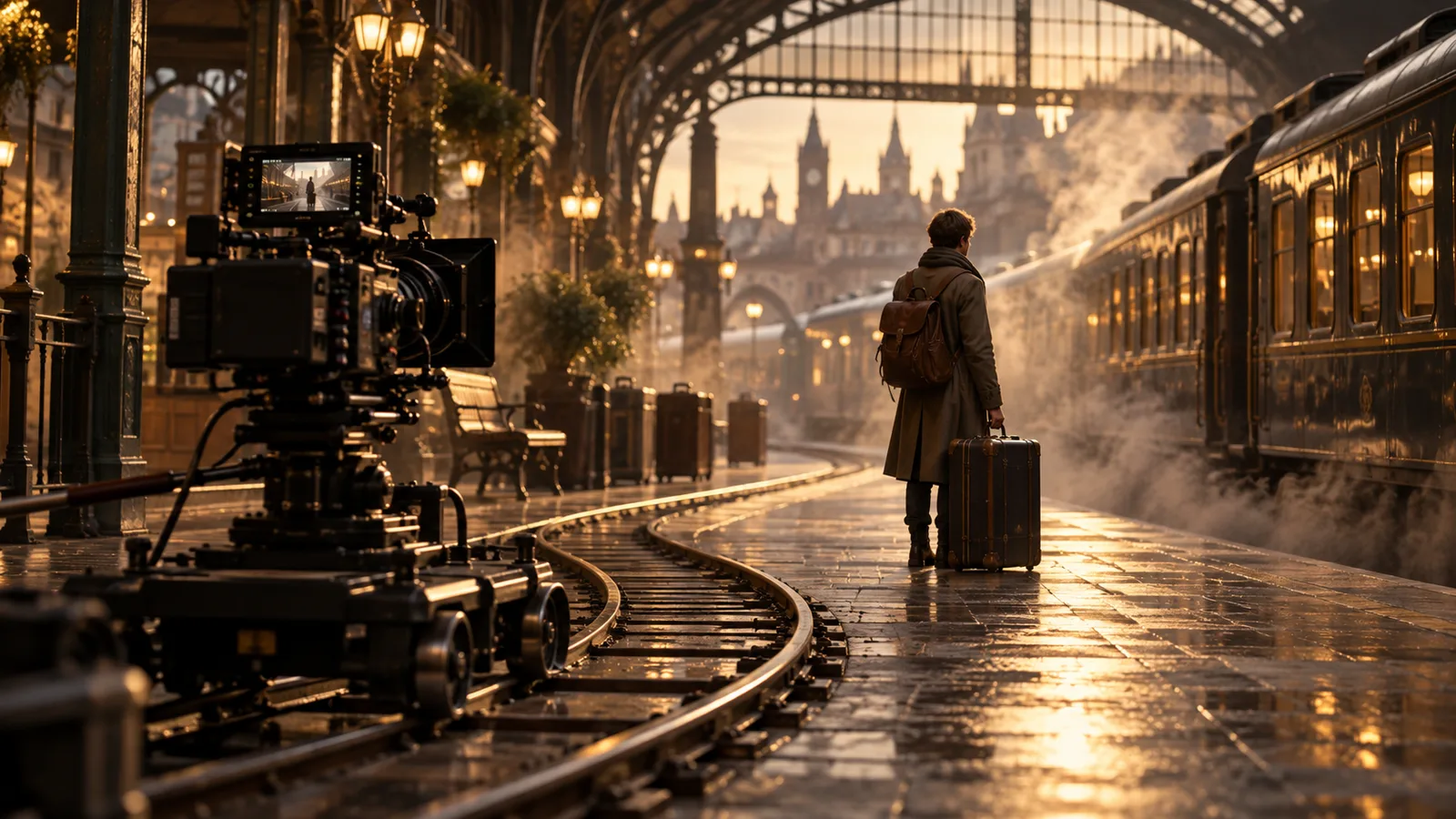
For AI camera movements, choose the storytelling purpose first, then describe one move with a clear direction and speed. Keep subject action simple while you evaluate the camera behavior. “Cinematic” alone does not tell a model whether to move closer, rotate, follow the subject or remain still.
Follow an original scene example: Mira, a watchmaker, studies a photograph at her workbench. Keep her action simple while exploring how each movement changes what the audience notices.
| Movement | What changes | A possible story use |
|---|---|---|
| Push-in | Camera moves closer | Draw attention to Mira's recognition |
| Pull-back | Camera moves away | Reveal the empty shop around her |
| Pan | Camera rotates from a fixed position | Shift attention from the watch to the door |
| Tracking | Camera travels with a moving subject | Follow Mira leaving the workbench |
| Orbit | Camera travels around a subject | Change the relationship between Mira and the shop |
| Locked shot | Camera stays in place | Let a gesture or pause carry the moment |
These are planning distinctions. A generated result may blend movements, so inspect what actually happens rather than accepting a label as proof. Runway's camera prompt resource provides further terminology and examples within its own ecosystem.
A useful starting structure is camera behavior, subject action and relevant environmental motion. For a comparison exercise, hold the input frame and character action steady, then vary the camera description. Any supported settings should also remain consistent where possible.
Google's Veo prompting documentation includes camera and action vocabulary for that model family. Runway's video prompting guide recommends focused, incremental motion descriptions. Use the selected model's documentation to prepare the inputs and refine the move.
Use a push-in to emphasize the recognition rather than adding unrelated visual activity:
The camera moves slowly forward toward the watchmaker, beginning in a medium
shot and ending closer to her face. She keeps her gaze on the photograph.
The workbench and lamp remain in the same positions.
In physical cinematography, moving the camera and changing focal length are different operations. If you want perspective to change as the camera advances, describe movement through the space. If the result resembles a zoom, simplify the subject action and clarify the intended forward travel. A model may still interpret the instruction imperfectly.
The reverse move can make Mira feel isolated:
The camera slowly moves backward from the watchmaker to reveal the small,
quiet repair shop around her. She remains standing at the workbench, holding
the photograph at waist height.
The starting image needs room for the implied setting to expand. If the reveal invents an inconsistent room, prepare a wider reference composition or use a separate establishing shot instead.
A pan rotates the viewpoint instead of traveling alongside the subject:
From a fixed position, the camera slowly pans left from the workbench toward
the shop doorway. The watchmaker remains beside the bench as the doorway
becomes the center of the frame.
Use this only if the reveal matters. If the door is already visible, a character's gaze and a sound cue may communicate the interruption more clearly than a large movement.
 Watch full video ↗
Tracking works best as a specific relationship between subject and camera:
The camera travels sideways alongside the watchmaker as she takes two slow
steps toward the doorway. It maintains a medium profile view and a steady
distance from her. She carries the photograph beside her apron.
If the camera rotates instead, reinforce “travels sideways” and reduce other instructions. If the character walks out of frame, start with a shorter action or a wider composition. Screen direction should also make sense with the shots before and after it.
An orbit introduces newly visible surfaces, so it can be harder to keep a complex space coherent. Start modestly:
The camera travels in a small, slow arc around the watchmaker, moving from
a frontal medium view toward a three-quarter view. She remains still beside
the workbench, looking at the photograph.
If background objects shift, reduce the arc or divide the scene into separate angles. A small perspective change may provide all the information this moment needs.
A locked shot is often the clearest choice for a readable expression or precise gesture:
Locked camera in a medium close-up. The watchmaker slowly raises her eyes
toward the doorway and then holds her gaze. The lamp casts steady warm light.
Describe the desired stillness directly, then inspect for drift. Avoid stacking several contradictory movement instructions into one prompt. If unwanted motion persists, check whether the input frame already suggests strong movement or an unstable perspective.
Moving from a wide shop view to a medium shot does a different job from moving from a medium shot to a close-up of Mira's eyes. State what the audience sees at the beginning and where their attention should rest at the end.
For a move from space to emotion, begin wider and end closer. For a reveal, place the important new information at the endpoint. Speed should support that purpose: slow movement can give recognition time to develop; a faster move can emphasize a sudden change.
Begin with a speed at which the subject remains easy to read. Settle direction and framing before adding rapid motion, a head turn and a lighting change together.
Prepare one frame with a clear face, workbench and enough background depth. If a character must remain recognizable, use a supported reference method; Runway's reference guide explains one model-specific approach.
Evaluate camera direction, framing, subject action and scene stability separately. Record which part needs revision. Do not call a result a successful pan if the camera actually slides sideways, or claim a controlled orbit when the subject simply turns.
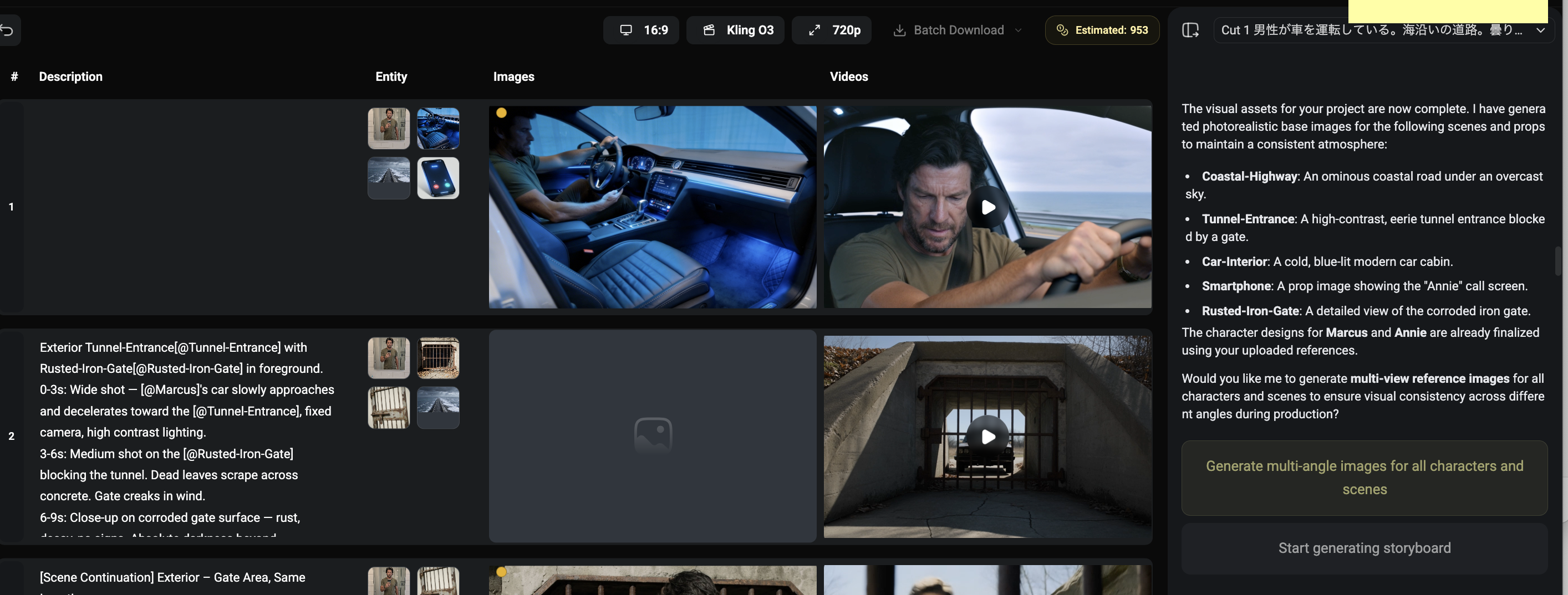
The Zopia workspace can organize the character, scene, storyboard and timeline for these comparisons alongside AI generation. Keep the movement intention beside the shot, then retain the chosen inputs and clip. Use the available controls in your selected model to develop the version that communicates most clearly.
For the first round, let Mira look at the photograph while comparing locked, push-in and pull-back versions. For the second round, change her action to raising her eyes. This separates the contribution of the camera from the contribution of performance.
| Starting material | Movement decision | What to inspect |
|---|---|---|
| Same medium frame | Locked or forward | Whether expression becomes clearer |
| Same shop layout | Pan toward the door | Whether the spatial relationship holds |
| Walking setup | Follow alongside | Whether Mira remains in frame |
| Standing setup | Small orbit | Whether newly revealed background is coherent |
Keep the settings you can control similar within a comparison. If you change the input image, aspect ratio or action, note that beside the shot so the difference has context.
A pan becomes sideways travel. Reinforce the fixed camera position, reduce character motion and name a clear endpoint such as the doorway.
A push-in changes the face. Reduce the distance traveled, keep the subject still or begin closer. A cut to a locked close-up can also provide the emphasis you need.
The subject shrinks during tracking. Describe a steady distance, give the figure room to move in the initial composition and begin with a short, simple walking action.
The shop changes during an orbit. Reduce the arc, simplify the visible background or cut between two prepared angles.
A locked shot drifts. Check whether the starting frame is tilted, blurred or strongly suggests motion. Try a stable composition and direct language describing stillness.
A push-in moves the camera through space and changes perspective. A zoom changes focal length and subject size within the frame.
Start with one main movement. For a combination, state the order and subject action so you can identify which part needs adjustment.
Use one simple action, state that framing and camera position stay fixed, simplify background motion and review movement cues in the input image.
Start creating professional AI videos with Zopia
Get Started Free