Zopia × SVAiFF
2026 Los Angeles–Silicon Valley AI Film Festival
Create with AI. Be seen by the world.
Submission deadline ·
200 Zopia Universal Credits + 800 Vidu Credits
Credit eligibility and redemption follow the campaign terms.
View eventZopia × SVAiFF
Create with AI. Be seen by the world.
Submission deadline ·
200 Zopia Universal Credits + 800 Vidu Credits
Credit eligibility and redemption follow the campaign terms.
View event
Zopia × YFCon
Zopia at YFCon 2026: connecting with creators and industry partners through AI creation.
Zopia exhibitor · Ended · 2026.10.08–10.09
Anaheim Convention Center · Hall A
Booth B14
Zopia × AIGC ASIA
Celebrate Eastern culture with AI and share new cultural visions with the world.
Gold awards in two tracks, ¥20,000 each
Register and receive 1,000 credits
Sep 1–Oct 11
More creative possibilities, more rewards
Create without limits · Earn without limits
Platform challenges
Create with AI. Share your boundless imagination.
Great ideas deserve to be seen
CREATORS
MAKE A BRIGHTER WORLD
Platform challenges
Invite friends to top up and earn cashback rewards.
Create together, grow together
TOGETHER
WE CREATE MORE
Creator partnerships
Invite friends or apply as an affiliate and earn rewards.
Connect with creators. Grow together.
CREATE TOGETHER
GROW TOGETHER
Turn a scene brief into a manageable MiniMax H3 task, prepare references and revise the parts of a shot that need attention.
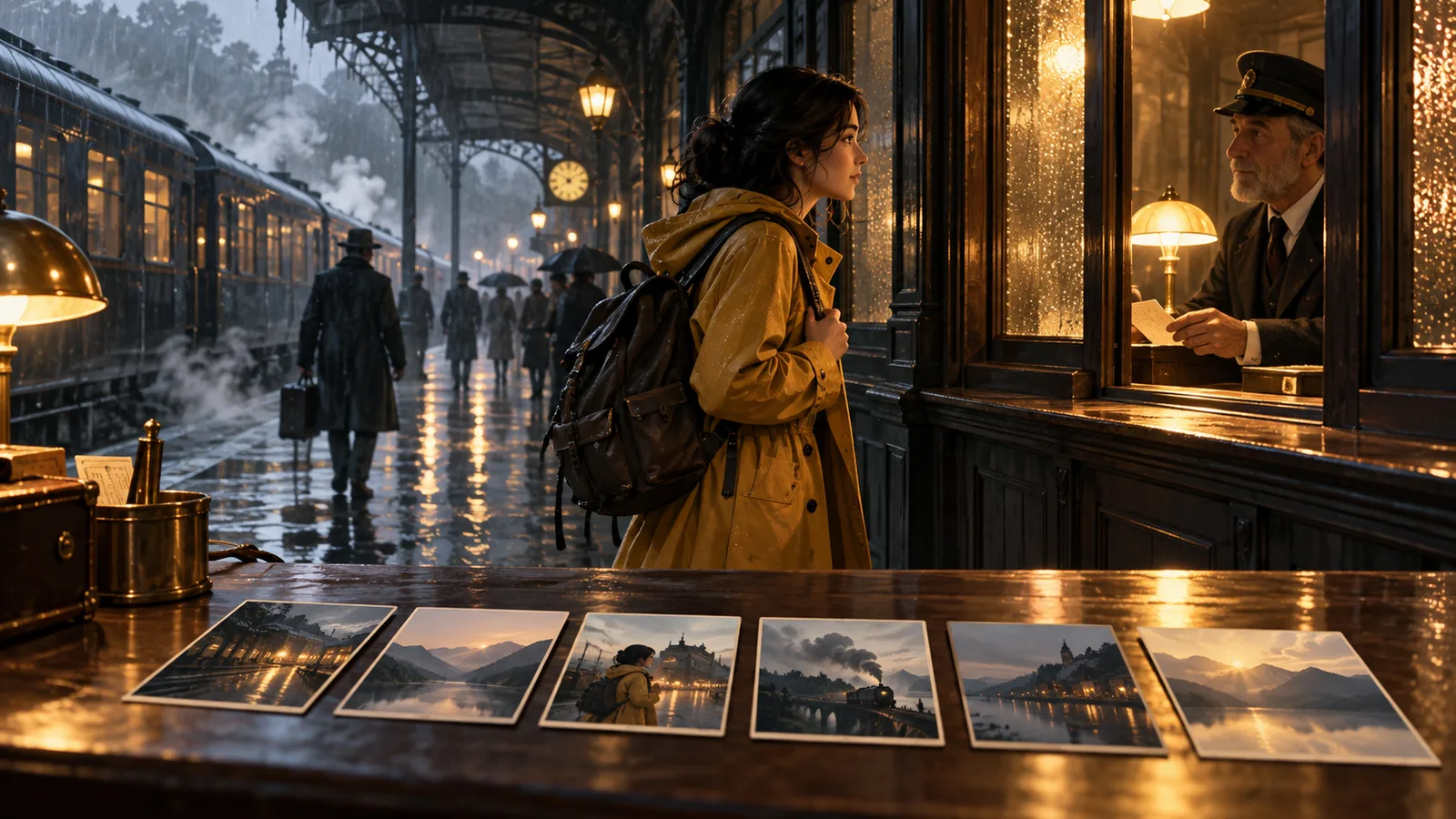
Start a MiniMax H3 video task by defining a visible action and the shot that will communicate it. Prepare the input material that your selected mode accepts, write a focused prompt, and evaluate the resulting clip in the sequence where it will be used. Keep the first attempt small enough to revise deliberately.
Use the fictional workshop exercise below to make an establishing view, a hand action and a close detail of an unfinished print. Each shot contributes a different piece of the scene.
In your Zopia account, check the exact H3 label and mode. Read the available inputs, output options and displayed consumption before submitting. If several versions appear, select the one that matches your task and record its name with the result so you can find the same conditions later.
The workflow below is useful whether you are planning a narrative insert or a quiet product scene: define the action, prepare material, generate a readable attempt, then make a targeted change.
“A craftsperson remembers an old workshop” is an idea. It does not yet specify what the camera sees. Translate it into an event: a craftsperson places a wooden stamp beside an unfinished print, pauses and touches the edge of the paper.
Choose the detail that carries the meaning. In this case it is the relationship between hand, stamp and paper. A close or medium shot can make that relationship legible. A wide shot of an elaborate workshop may hide it.
Write down the final frame as well as the opening. If the next clip shows the unfinished print, the first shot should end with the paper visible and the hand no longer covering it. This is an editorial decision that belongs in the brief before generation.
| Shot | Narrative task | Important details | Closing state |
|---|---|---|---|
| Workshop wide view | Establish the room | Window on the left, table | Person settled, table visible |
| Medium hand action | Show a pause in the work | Stamp, paper and hand | Stamp at rest, hand withdrawn |
| Print close-up | Show the unfinished work | Paper edge and image | Stable frame for a held detail |
Every shot does not need to show every object. The wide view explains the space, the medium shot explains behavior and the close-up explains the result. Once those tasks are separate, the prompts become easier to write and easier to revise.
Where the mode offers references, use a character image for appearance and a workspace image for the table and light. Check that references agree about wardrobe, materials and time of day. If a real craft is being represented, collect accurate visual material and a credible description of its process.
Do not treat a generated scene as evidence of how a craft is actually practiced. An illustrative workshop can support storytelling, but factual claims about materials, gestures and cultural meaning need their own sources. Where precision matters, ask a practitioner to review the depiction before publication.
Attach assets through the product controls and assign their role in plain language. Avoid inventing an attachment syntax or assuming that a model's name proves support for a specific file type in your chosen mode.
Choose material for the angle you intend to show. A tabletop medium view needs visible relationships between hand, sleeve and tool size. The workshop wide view needs a readable window and table arrangement. The print insert needs the paper itself. An atmospheric room image should not have to supply every fine detail.
Keep the light source coherent as well. If the room establishes a window to the left, check where that window sits relative to the table in subsequent views. The lit side of an object may change with camera position, but the room's underlying layout should remain understandable.
Medium close shot of a craftsperson at a wooden workbench. The craftsperson places a wooden stamp beside an unfinished print, pauses, then rests one hand on the edge of the paper. The camera remains still at table height. Soft window light from the left, visible wood grain, natural fabric texture. Keep the stamp shape, clothing and paper position consistent. End with the unfinished print clearly visible.
The prompt prioritizes one relationship and a readable ending. If the hand-object contact is confused, split it into two shots: a hand approaches the table, followed by a static insert of the stamp beside the print. Editing can connect actions that are awkward to generate continuously.
A vague first draft might ask for “a skilled craftsperson printing while remembering the past, with an orbiting camera.” Reduce that to placing the stamp, withdrawing the hand and holding still. Establish the action before adding a separate reaction shot. “Skilled” is an interpretation; the movement of the hand is something the image can show.
Wide shot of a small workshop in soft morning light. The workbench stands beside the left window, with paper sheets arranged neatly and a wooden stamp resting near the front edge. The craftsperson stands behind the table. A slow sideways camera move reveals the working space. Preserve the placement of the window, table and tools.
Use this as a separate establishing shot, not an extra demand inside the hand-action prompt. Compare the room layout before cutting the shots together. If the window changes sides or the tools move, revise the input material or adjust the edit around a neutral detail.
Close view of an unfinished print lying flat on the workbench. The wooden stamp rests in the upper-right corner, with a small border of table visible around the paper. Soft window light from the left reveals the paper fibers. Fixed camera. Keep both hands out of frame, with the paper still and no additional tools entering. Preserve the paper shape and overall image layout.
The insert can follow the action or hold under narration. If you need an accurate existing artwork or a real product mark, use a reliable image or an editable compositing layer for the precise design. Let the generated shot provide atmosphere and movement while retaining control over the exact graphic.
If the result contains too much motion, reduce the sequence to a single action. If the camera hides the important object, choose a fixed angle and enlarge the object in frame. If clothing changes, simplify the wardrobe description and reuse an approved reference. If a room becomes unstable, remove unnecessary background activity.
When a clip looks convincing at first but fails later, identify the usable interval before discarding it. A short insert may be all the edit needs. Keep task settings and prompt revisions beside the clip so a later collaborator can understand why it was selected.
| Observed issue | Prompt or material change | What may still be useful |
|---|---|---|
| Hand passes through a tool | Separate approach and contact | Room and lighting |
| Stamp changes shape | Enlarge the object, fix the camera | Wardrobe and character |
| Paper changes constantly | Use clear paper material, reduce handling | Table arrangement |
| Workshop layout drifts | Establish window-to-table positions | Stable close details |
Do not replace every asset because one detail failed. Keep an effective establishing view while repairing the hand action. Substitute a reliable artwork insert when precision matters. Keeping the repair local helps preserve the visual language already working elsewhere.
Arrange wide view, action and detail without captions first. The viewer should understand that a person has paused at the workbench. Then try starting with the print before revealing the person: the scene may feel more like a memory. Opening with the room instead makes it feel more observational.
Choose one structure before generating the next material. Add a reaction, an exterior sound cue or the completed work only if that structure needs it. Narration can explain context while the image supplies a gesture or a pause; the two do not need to repeat each other word for word.
Review the action at normal speed, inspect hands and object contact, then place it beside the neighboring shot. Add exact titles, labels and credits in the edit. Treat generated audio as a separate production choice: use it only where the selected mode offers it and where it fits the final soundtrack.
For cultural-heritage work, distinguish an illustrative reconstruction from documentary footage. For a product video, check that the design and visible claims match the real product. Those decisions remain necessary regardless of the selected model.
Open Zopia's workspace with one shot brief and a small, consistent set of source material. Confirm the current H3 options, make a first attempt and revise the specific detail preventing the shot from working in your sequence.
Choose one clear action, such as picking up a prop and pausing. Establish the character–object relationship before expanding the scene.
Split the action into an approaching hand, the prop already lifted and a reaction. Connect the movement in the edit.
Choose wide shots, medium shots and close-ups by narrative purpose while maintaining orientation, prop positions and light.
Start creating professional AI videos with Zopia
Get Started Free