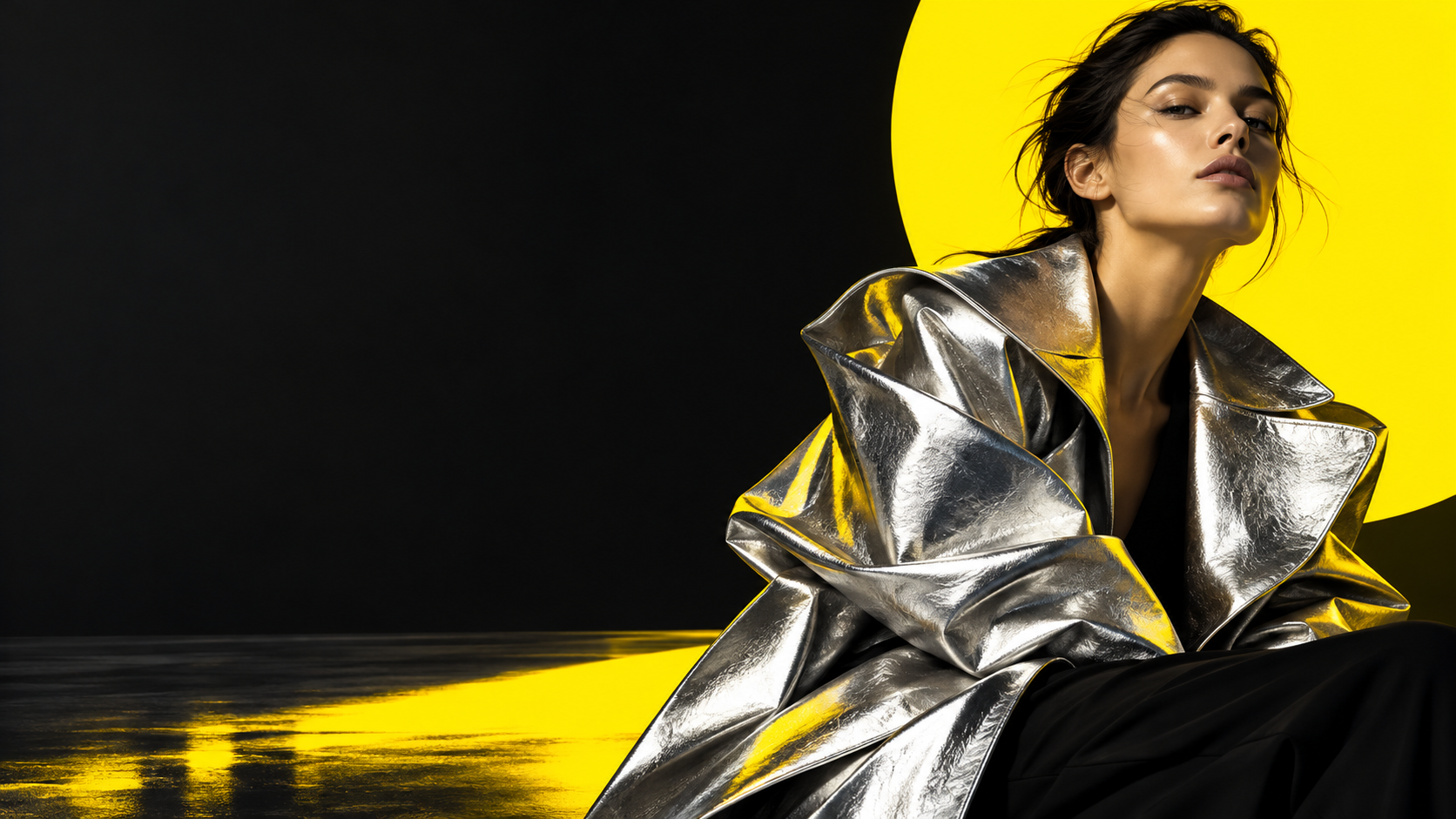
Generate and edit images with GPT Image 2.5

Generate from a clear promptEdit reference images in placeCreate text-rich layoutsExport transparent and 4K-ready assets
GPT Image 2.5 Examples

GPT Image 2.5 Technical Specs

The current Zopia configuration gives you the following controls.

Model route
gpt-image-2.5-flare
Image inputs
Up to 16 reference images
Quality
Low · Medium · High
Sizes
1K · 2K · 4K
Aspect ratios
1:1 · 2:3 · 3:2 · 4:3 · 3:4 · 9:16 · 16:9
Workflow
Generate from prompt · edit with reference images
Best for
Product assets · campaign variants · editorial layouts
Pricing
Shown before generation; final usage follows the provider response

What is GPT Image 2.5?

GPT Image 2.5 is OpenAI’s image generation and editing model family. OpenAI describes Flare as the faster default for everyday creation and Sunburst as the higher-precision option for more demanding creative work; the current Zopia route is GPT-Image-2.5 Flare. This page focuses on the practical workflow: create from a brief, edit a reference, and iterate while keeping the important parts stable.

What can you create with GPT Image 2.5?

Use one workflow for the first concept, the controlled edit, and the production-ready version.

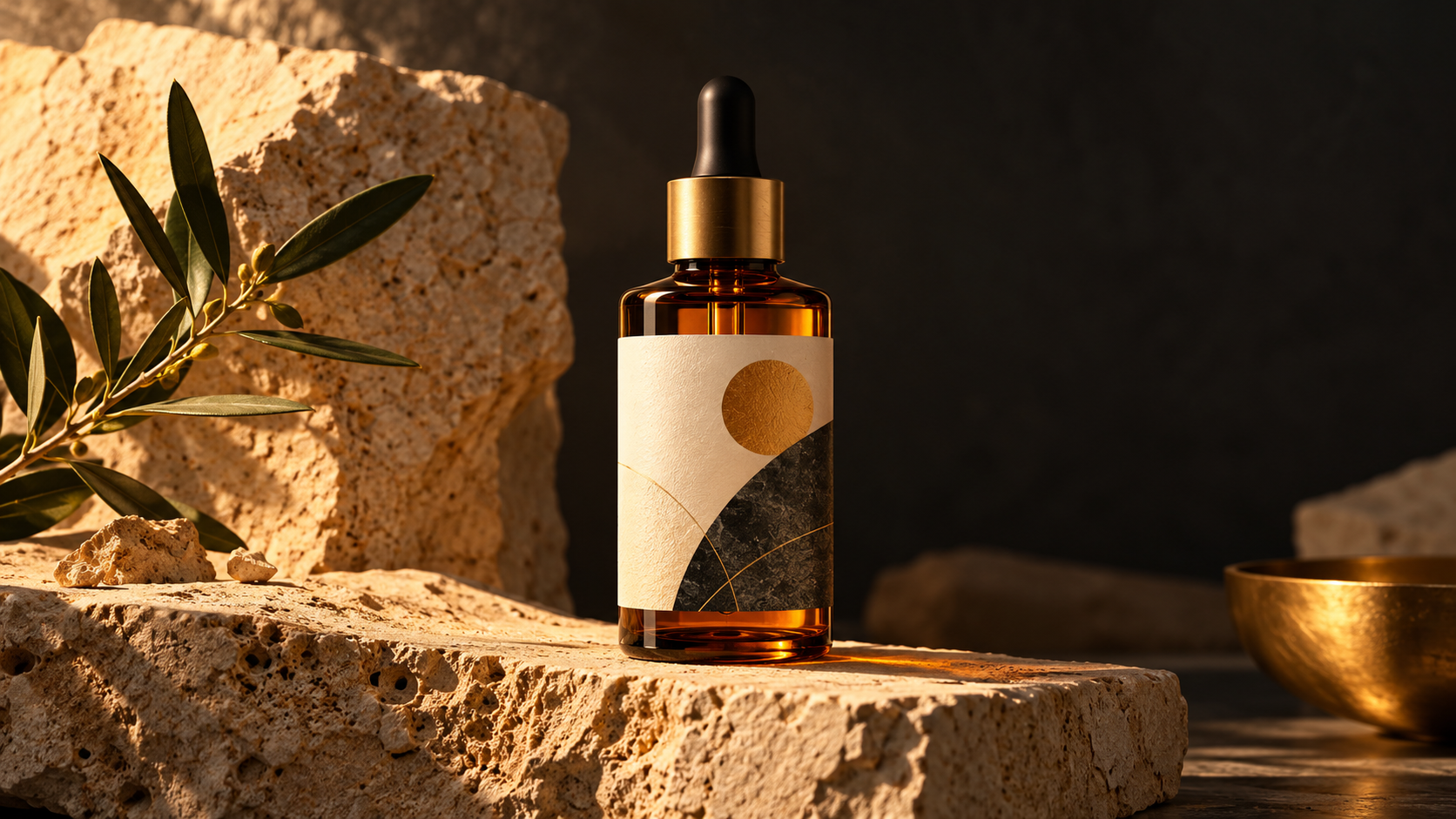
GPT Image 2.5 product photography use case

01

Product and packaging visuals

Keep the product shape, label, and brand marks while changing the setting, lighting, surface, or composition.

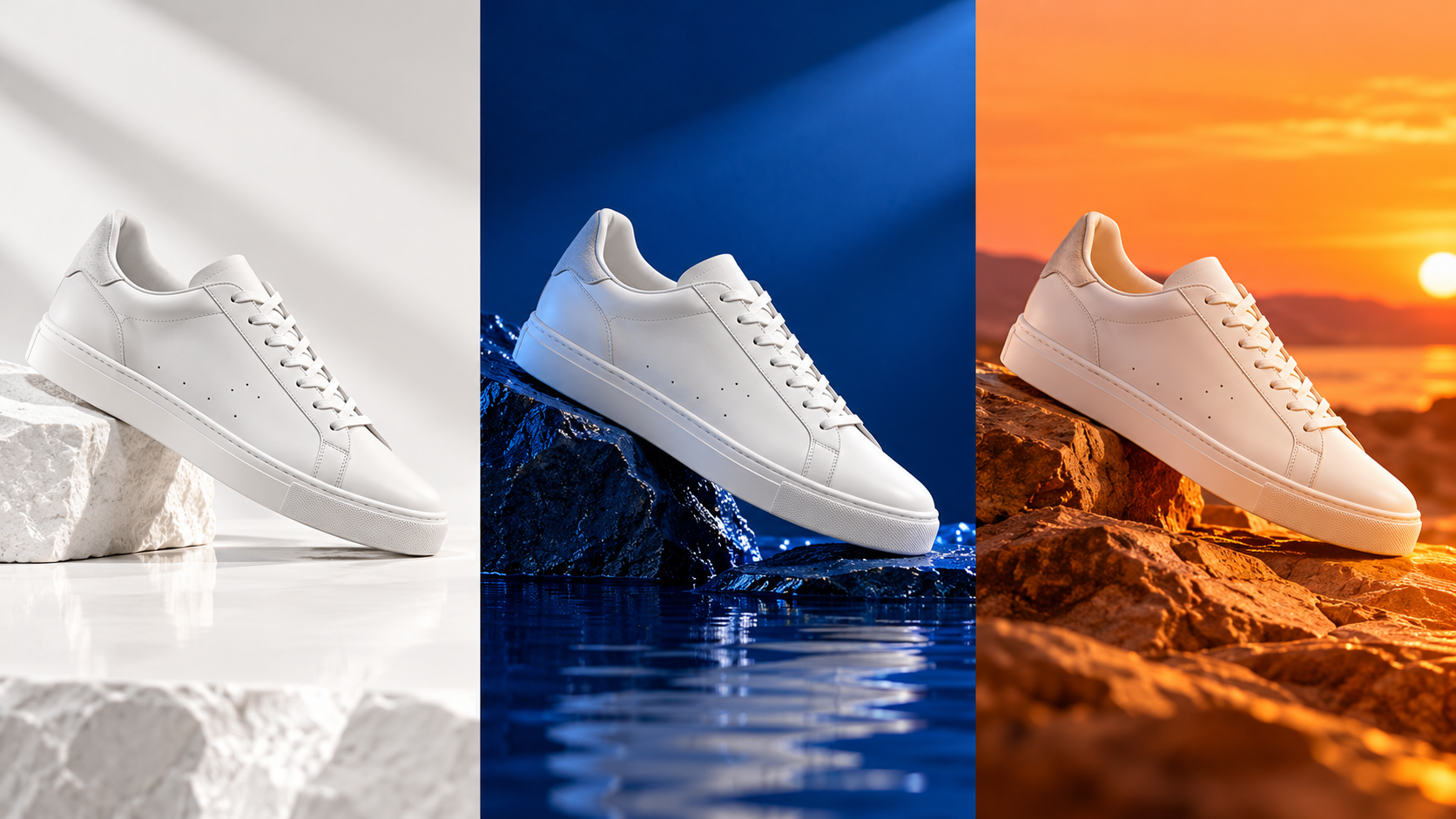
GPT Image 2.5 campaign variation use case

02

Campaign and social variations

Create multiple hooks, headlines, backgrounds, crops, and aspect ratios from one visual direction.

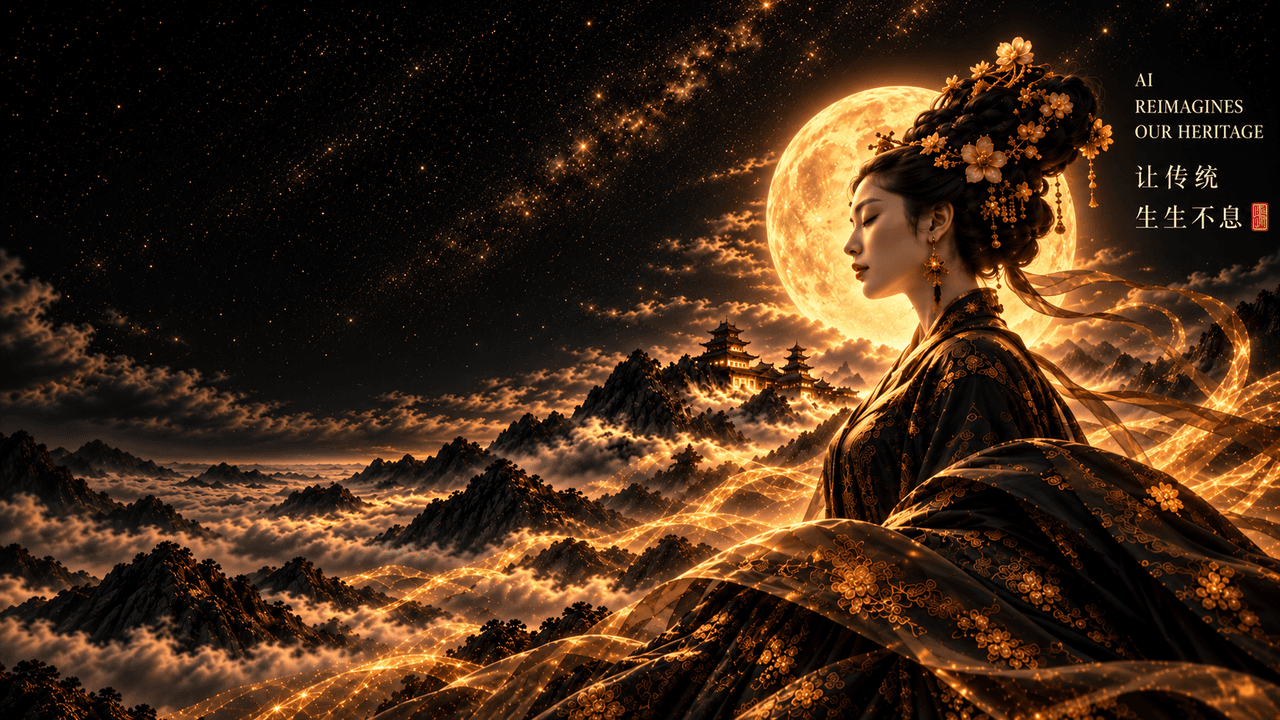
GPT Image 2.5 editorial layout use case

03

Transparent background assets

Generate cutouts, stickers, icons, and compositing elements with a transparent background and clean subject edges.

GPT Image 2.5 precision edit before and after use case

04

Precision image editing

Change one object, color, or background while protecting the rest of the image with explicit keep rules.

A practical GPT image generator for real creative work

Move from first concept to finished asset in the same Zopia workflow, with controls that keep important visual details in view.

01

Generate from a brief

Describe the subject, audience, composition, lighting, style, and exact copy to create a strong first direction without rebuilding the brief each time.

02

Edit only what needs to change

Use the ChatGPT image editor workflow to replace a background, remove an object, adjust a color, or change a layout while naming the details that must stay.

03

Keep references in the loop

Upload product, character, or layout references and explain each image's role so the next generation stays aligned with the visual direction.

04

Build transparent assets

Ask for a transparent background when you need a product cutout, sticker, icon, or composited subject. Specify clean edges and the intended placement.

05

Choose the right output size

Use 1K for exploration, 2K for working assets, or 4K image generation when the final placement needs more detail. Select the aspect ratio before you submit.

How to use GPT Image 2.5 in Zopia

Write the outcome first, add the references and constraints that matter, then make one focused edit at a time.

  1. Step 01

    Describe the finished image

    State the use case, subject, audience, aspect ratio, composition, lighting, style, and any exact text that must appear.

  2. Step 02

    Add a reference and protection rules

    Upload up to 16 reference images when useful. Say what each one contributes, what may change, and what must remain consistent, such as a logo, face, label, or product shape.

  3. Step 03

    Generate, inspect, and refine

    Create the first image, check text and important details, then request one clear change. Choose 1K, 2K, or 4K and the final aspect ratio for the intended placement.

Write prompts that GPT Image 2.5 can use

Use this order: goal + subject + composition + exact text + lighting + style + reference roles + constraints + output size. For editing, lead with the change, then list what must stay. Copy and adapt: "Create a 4:5 product campaign image from the uploaded bottle photo. Keep the bottle shape, label layout, logo, and camera angle unchanged. Replace the background with warm limestone, add soft side lighting and a short contact shadow, leave clean space at the top for the headline 'Made for the morning', and export with a transparent background around the bottle."

Copy-ready GPT Image 2.5 prompt library

Copy a prompt into the Generator, then replace the subject, text, colors, and format with your own brief.

Product creative01

Reference-led product campaign

Create a 4:5 premium product campaign image from the uploaded bottle photo. Keep the bottle shape, label layout, logo, and camera angle unchanged. Place it on warm limestone with soft side lighting and a short contact shadow. Leave clean space at the top for the headline "Made for the morning". Use a restrained cream, amber, and charcoal palette.

Transparent asset02

Clean product cutout

Create a high-detail product cutout from the uploaded sneaker reference. Keep the shoe shape, stitching, sole, logo placement, and material texture accurate. Remove the entire background and make it transparent with clean edges and no halo. Use a three-quarter angle, centered framing, and soft natural shadow only if it remains separate from the transparent background.

Campaign variants03

Three controlled directions

Using the uploaded white sneaker reference, create three 1:1 campaign directions with the same shoe shape, stitching, camera angle, and scale. A: bright white studio with a soft gray floor. B: deep cobalt background with reflective water. C: warm sunset rocks with long shadows. Do not add text or change the logo. Keep each direction clean enough for a headline to be added later.

Precision edit04

Change one element

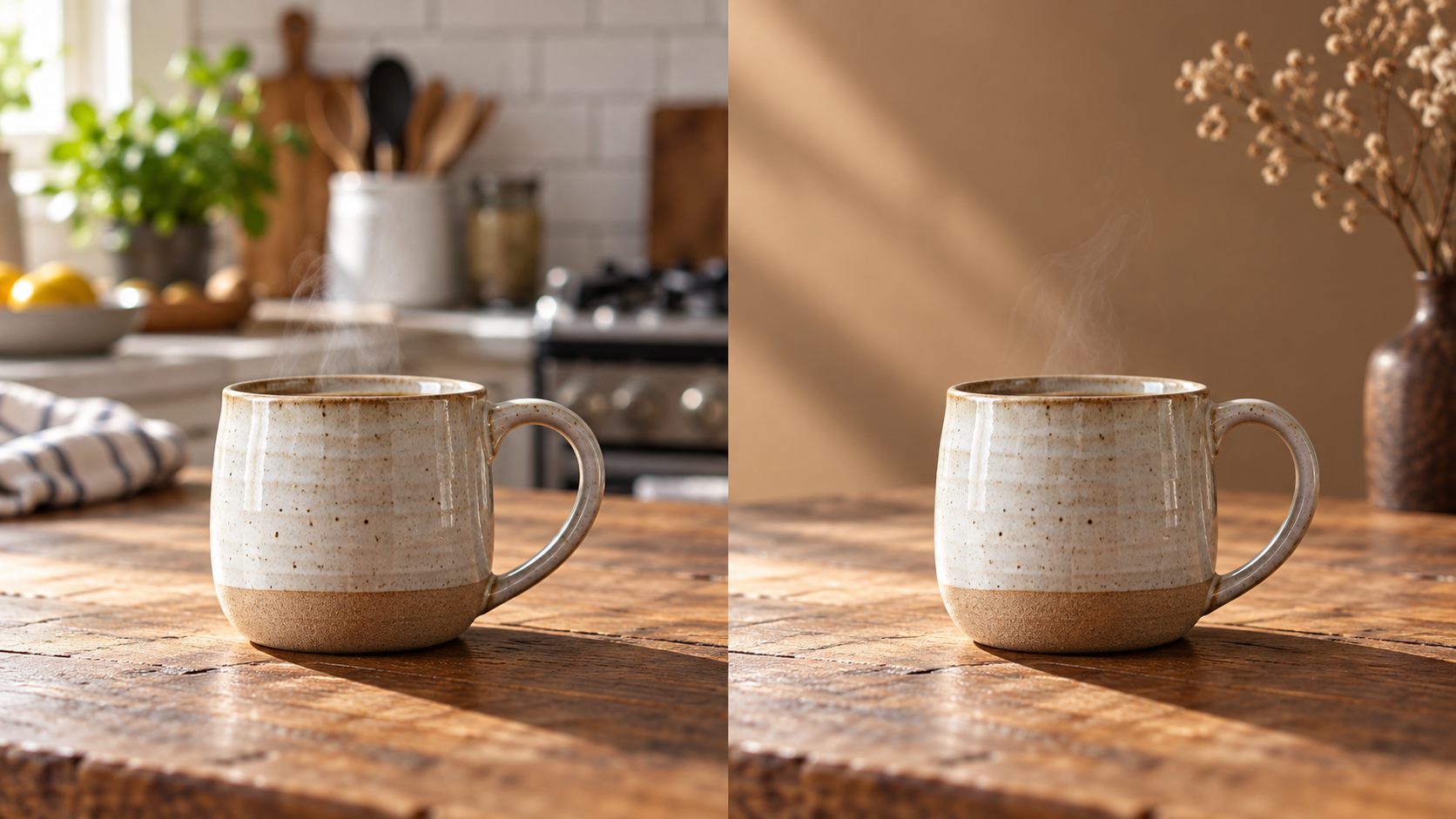
Edit the uploaded ceramic cup image. Keep the cup shape, handle, steam, table texture, camera angle, and light direction unchanged. Replace only the cluttered kitchen background with a quiet warm wall and one dry plant. Preserve the contact shadow and realistic depth of field. Do not add text or new objects.

GPT Image 2.5 and AI image editing FAQ

You can create product visuals, campaign variations, social graphics, editorial layouts, character concepts, transparent assets, and other images that benefit from clear instructions and iterative editing.

Yes. Upload a reference image, describe the specific change, and list the details to preserve. This makes it easier to guide a background replacement, object removal, color change, or layout adjustment.

Zopia provides a GPT Image 2.5 generation and editing workflow. You can prompt a new image, upload references, and refine the result in the same workspace.

Yes, you can request a transparent background for cutouts, stickers, icons, or compositing. State that the background must be transparent and ask for clean edges around the subject.

The current Zopia configuration offers 1K, 2K, and 4K sizes. Choose the smallest size that fits the final placement, or select 4K when the asset needs more detail.

The current Zopia route supports up to 16 image inputs. Describe the role of each reference so the generator can prioritize product identity, composition, style, or text.

It can help create text-led layouts and labeled visuals. Put the exact wording in quotation marks, specify hierarchy and placement, and inspect the result before publishing.

Before publishing, review the applicable OpenAI terms, your Zopia plan, and the rights for any uploaded references. Check people, logos, trademarks, and third-party images separately.

Turn your next brief into a finished image

Generate a first direction, edit the details that matter, and keep the work moving inside Zopia with GPT Image 2.5.

Generate with GPT Image 2.5