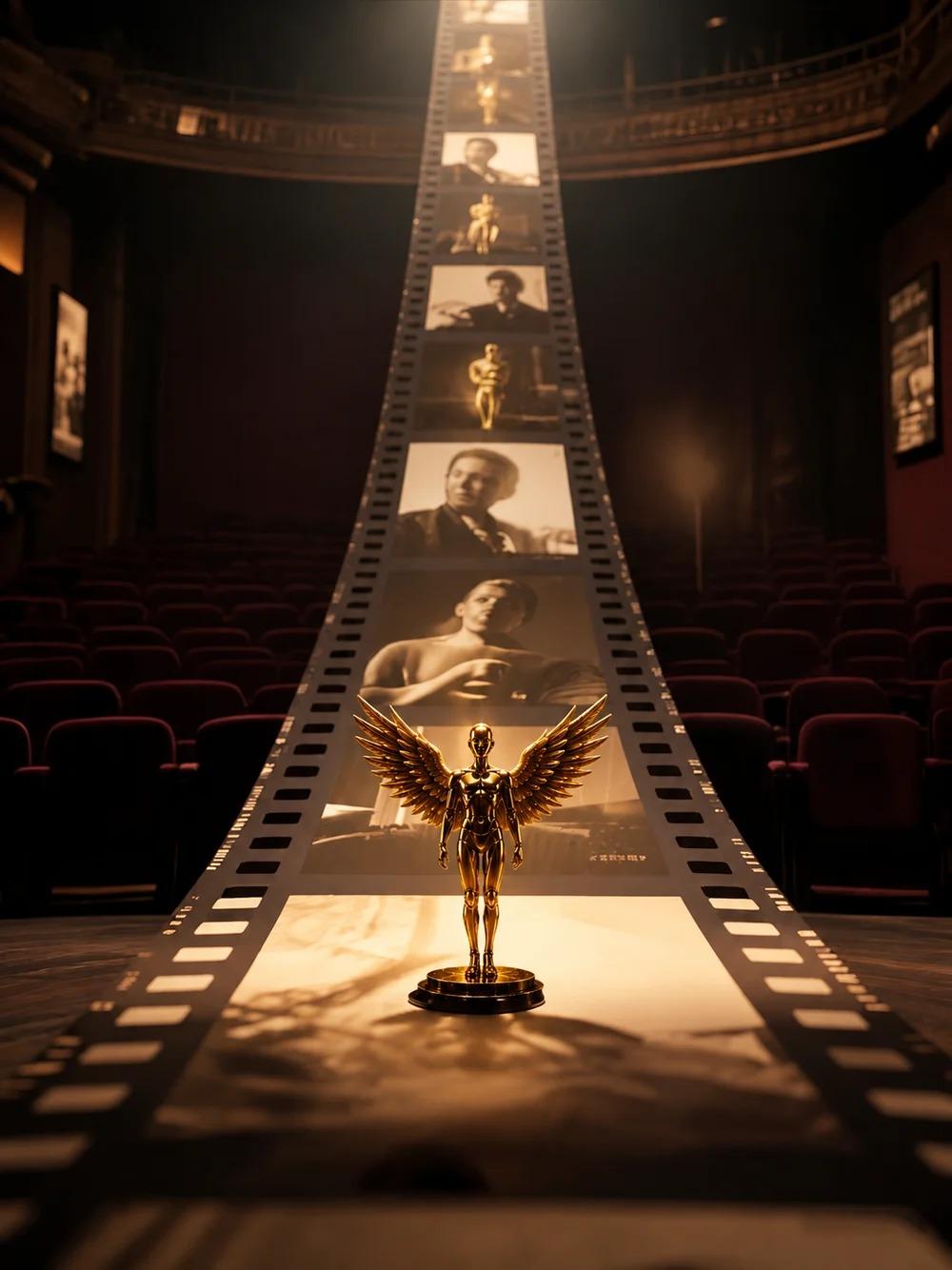
Zopia × SVAiFF
2026 Los Angeles–Silicon Valley AI Film Festival
Create with AI. Be seen by the world.
Submission deadline ·
200 Zopia Universal Credits + 800 Vidu Credits
Credit eligibility and redemption follow the campaign terms.
View eventZopia × SVAiFF
Create with AI. Be seen by the world.
Submission deadline ·
200 Zopia Universal Credits + 800 Vidu Credits
Credit eligibility and redemption follow the campaign terms.
View event
Zopia × YFCon
Zopia at YFCon 2026: connecting with creators and industry partners through AI creation.
Zopia exhibitor · Ended · 2026.10.08–10.09
Anaheim Convention Center · Hall A
Booth B14

Zopia × AIGC ASIA
Celebrate Eastern culture with AI and share new cultural visions with the world.
Gold awards in two tracks, ¥20,000 each
Register and receive 1,000 credits
Sep 1–Oct 11
More creative possibilities, more rewards
Create without limits · Earn without limits
Platform challenges
Create with AI. Share your boundless imagination.
Great ideas deserve to be seen
CREATORS
MAKE A BRIGHTER WORLD
Platform challenges
Invite friends to top up and earn cashback rewards.
Create together, grow together
TOGETHER
WE CREATE MORE
Creator partnerships
Invite friends or apply as an affiliate and earn rewards.
Connect with creators. Grow together.
CREATE TOGETHER
GROW TOGETHER
Bring your characters into the stories you want to tell.
From references to stories with sound
Vidu Q4 is a video generation model from Shengshu Technology, supporting reference-to-video and image-to-video. Combine images to define characters, environments and visual style, or start with a single image and describe what happens next. Add voice references to bring both your characters’ appearance and their voices into the story.
Multiple image references · Characters and scenes
Reference-to-video supports 1–15 images. Combine character designs, scene compositions and style references, then explain their relationships in your prompt. From a single protagonist to a fantasy world, give your ideas a concrete foundation.
Image-to-video · Action and camera movement
Upload a starting frame and describe the subject’s actions, camera direction and changes in the scene to create a 3–16 second video. Guide running, chasing, smoke and lighting with specific descriptions of movement.
Voice references · Multi-shot storytelling
Add up to 3 voice references in reference-to-video mode. Describe dialogue and emotion in your prompt to help shape each character. With up to 16 seconds per generation, there is room for entrances, action and shot changes.
Selected official Vidu examples
These videos from the Vidu Q4 website showcase different creative directions. Find inspiration in character relationships, atmosphere and the rhythm of movement.
Reference-to-video
Characters and fantasy settings meet on screen, giving your character designs a world to explore.
Image-to-video
See how character movement, camera changes and environmental details work together in dynamic scenes.
Showcase
Find your direction in scenes from different genres, then use references to express your own ideas.
Upload one starting frame for image-to-video. For reference-to-video, combine character, scene and style images, with optional voice references.
Specify the subject, actions and camera changes. For dialogue, describe who speaks, what they say and the emotion you want to convey.
Choose a duration and submit. View progress and results in the creative canvas, then refine your prompt or references to develop the scene.
Choose an input mode that suits your idea and organize your references and prompt clearly.
| Current model | Vidu Q4 Preview |
|---|---|
| Creation modes | Reference-to-video and image-to-video |
| Video duration | 3–16 seconds |
| Image references | 1–15 images for reference-to-video; 1 starting frame for image-to-video |
| Voice references | Optional 0–3 audio clips in reference-to-video mode |
| Audio generation | Synchronized audio and video; enable sound as needed |
Image-to-video does not use an end frame or voice references. Both modes require image input.
The currently integrated Vidu Q4 Preview supports image-to-video and reference-to-video. Both require images. Prepare a starting frame or reference images, then describe the action, scene and camera in text.
Choose image-to-video if you have an image you want to use as the starting frame. Choose reference-to-video to combine characters, scenes and styles or add voice references. Explain the purpose of each reference in your prompt.
Reference-to-video supports 1–15 images and an optional 0–3 voice references. Image-to-video uses 1 starting frame and does not support an end frame or voice references. Video references are not currently supported.
Choose 3–16 seconds per generation. Use a shorter duration for a brief action, or allow more time for character entrances, interactions and shot changes.
Enable audio generation and describe the speaker, dialogue and emotion in your prompt. In reference-to-video mode, you can also add voice references to guide the character’s voice. Results depend on your inputs and descriptions.
The videos are official examples from the Vidu Q4 website. They illustrate creative possibilities and do not guarantee the same results for every generation.
After signing in and submitting, you will enter the Zopia creative canvas. View task progress and results there, then continue refining and creating.
Bring your reference images, describe the action and dialogue, and start shaping your first Vidu Q4 video.
Try the same brief with different models and keep the version that fits your channel.
Free / Unlimited / Cinematic Quality
Up to 10 references / consistent characters & products
Early access on Zopia · Turn imagination into a complete scene.