Zopia × SVAiFF
2026 Los Angeles–Silicon Valley AI Film Festival
Create with AI. Be seen by the world.
Submission deadline ·
200 Zopia Universal Credits + 800 Vidu Credits
Credit eligibility and redemption follow the campaign terms.
View eventZopia × SVAiFF
Create with AI. Be seen by the world.
Submission deadline ·
200 Zopia Universal Credits + 800 Vidu Credits
Credit eligibility and redemption follow the campaign terms.
View event
Zopia × YFCon
Zopia at YFCon 2026: connecting with creators and industry partners through AI creation.
Zopia exhibitor · Ended · 2026.10.08–10.09
Anaheim Convention Center · Hall A
Booth B14

Zopia × AIGC ASIA
Celebrate Eastern culture with AI and share new cultural visions with the world.
Gold awards in two tracks, ¥20,000 each
Register and receive 1,000 credits
Sep 1–Oct 11
More creative possibilities, more rewards
Create without limits · Earn without limits
Platform challenges
Create with AI. Share your boundless imagination.
Great ideas deserve to be seen
CREATORS
MAKE A BRIGHTER WORLD
Platform challenges
Invite friends to top up and earn cashback rewards.
Create together, grow together
TOGETHER
WE CREATE MORE
Creator partnerships
Invite friends or apply as an affiliate and earn rewards.
Connect with creators. Grow together.
CREATE TOGETHER
GROW TOGETHER
Explore Seedream 5.5 multi-turn editing, transparent assets, layer decomposition, and practical workflows. Get 40% off during Zopia’s 30-day launch offer.
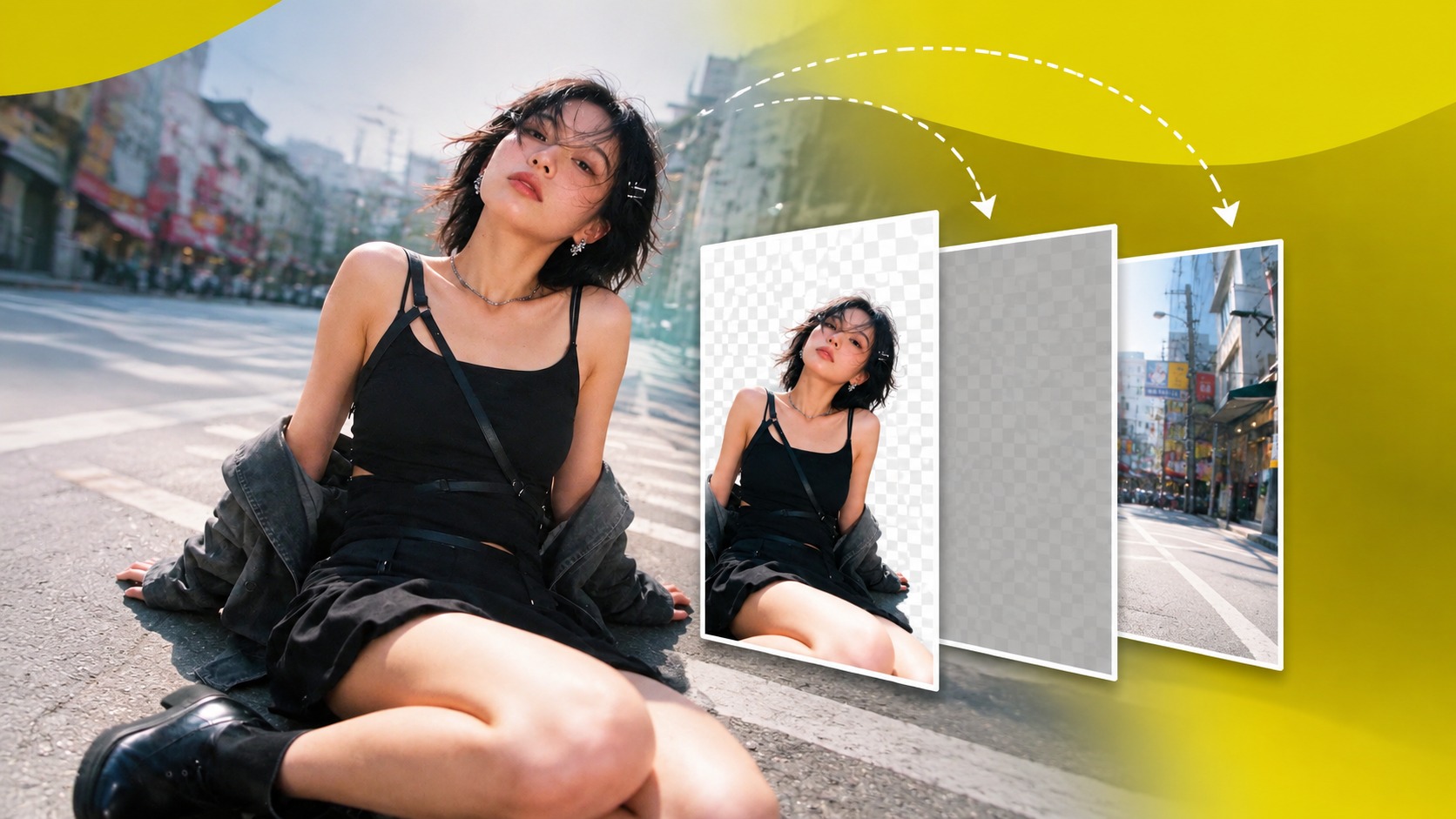
A product image rarely reaches its final version in one attempt. The chair needs a different color. The headline changes. A character needs a new accessory, while their face and outfit should stay recognizable. Then the same creative needs to work in another layout.
The most useful Seedream 5.5 features address these everyday revisions: multi-turn editing, native RGBA transparency, and layer decomposition. Together, they give creators more control over how an image develops and how its elements can be reused.
This guide explains what those capabilities mean in practice, where they fit into e-commerce, advertising, game art, and interior design, and how to write clearer editing prompts.
Coming to Zopia: Seedream 5.5 is planned to become available on the evening of November 12, 2026, Singapore time (UTC+8). Zopia’s launch offer will run for 30 days from availability, with Seedream 5.5 usage priced at 60% of the platform’s standard rate—a 40% discount.
Seedream 5.5 is ByteDance’s image generation and editing model. It supports text-to-image creation and image-to-image editing, including the use of multiple reference images. Its capabilities include more consistent iterative editing, transparent asset generation, reusable layers, improved realism, and clearer text rendering.
For a creative team, the distinction is practical: an image can become the starting point for further work. You can refine the parts that need attention, generate an asset with transparency, or separate a composition into elements for downstream design.
Here is a quick guide to the capabilities covered in this article:
Capability | What it enables | Where it is useful |
|---|---|---|
Multi-turn editing | Targeted revisions with improved consistency in the subject and untouched areas | Product variations, character development, client revisions |
Native RGBA generation | Image assets with an alpha transparency channel | Product cutouts, stickers, UI graphics, compositing |
Layer decomposition | Separating a composition into alpha-enabled PNG layers | Poster adaptation, asset reuse, layout changes |
Improved realism and blending | More natural textures, lighting, and integration of references | Product scenes, portraits, interior concepts |
Improved text rendering | Clearer typography in dense and multilingual layouts | Posters, labels, information graphics |
An editing workflow becomes frustrating when changing one detail also changes several others. A new jacket color should not require accepting a different face, and a revised product material should not mean rebuilding the composition.
Seedream 5.5 multi-turn editing focuses on more consistent targeted revisions. ByteDance reports strong visual consistency across 100 consecutive edits in internal testing. That is a reported internal test result; it is not a guarantee that every image will remain unchanged through any sequence of requests.
The practical benefit is the ability to develop an existing direction through smaller decisions. For example, a furniture creative could move through three requests:
“Change only the chair upholstery to navy blue. Preserve the chair shape, people, camera angle, background, and lighting.”
“Give the chair upholstery a brushed fabric texture. Preserve its navy color, shape, and position, and retain the surrounding scene.”
“Replace the wall art with a small abstract print. Preserve the chair, people, room layout, and lighting.”
Each prompt names both the change and the details to retain. The prompt guidance also recommends making each round self-contained and splitting complex changes into smaller steps.
After each round, compare the result with the version you intend to preserve. Look at product proportions, faces, logos, fine text, and the boundaries around edited areas. A successful edit should support the next decision.
Multi-turn image editing.
Seedream 5.5 transparent background generation uses RGBA output, where the alpha channel describes transparency. This makes it possible to create an image element that can be placed over a different background or combined with other assets.
The model specifications support native RGBA generation for both text-to-image and image-to-image workflows. Useful requests include an isolated product, an illustrated character, a sticker, a decorative element, or a UI graphic.
For example:
Create an isolated orange inflatable armchair, front three-quarter view, with realistic seams and a glossy surface. Use an RGBA transparent background. Keep the entire chair inside the frame, with no floor, surrounding scene, or text.
A transparent asset is useful when the same subject needs to appear on a product page, a campaign poster, and a social graphic. Its surrounding design can change without making a new scene the basis of every request.
Check the downloaded output as well as its preview. A checkerboard drawn into an image is different from an actual alpha channel. Inspect transparent and semi-transparent edges against both light and dark backgrounds, especially around hair, glass, reflections, and soft effects.
For a Seedream 5.5 transparent PNG workflow, PNG is the relevant format: JPEG does not retain an alpha transparency channel.
RGBA transparency and layer-based editing.
Transparency helps you create an individual asset. Seedream 5.5 layer decomposition helps you work with the elements inside an existing composition.
The model specifications describe a maximum output of 100 PNG images in total: one base image plus up to 99 layers. Each separated layer is an alpha-enabled PNG. The actual layer count and quality depend on the image, the request, and the available controls.
Consider a café poster with a drink, a headline, a discount badge, and a background. Layer separation can provide elements that a designer can reposition, resize, or combine in a downstream editor. That is useful when adapting an existing campaign to another layout.
The documentation also describes structured text data through text recognition. This can support downstream text editing and localization when the integration exposes that data. It does not establish native PSD export or a ready-made Figma file, and separated text imagery should not automatically be treated as editable font text.
A practical workflow is to:
Choose a composition with a clear subject and readable text.
Separate its elements using the available layer controls.
Inspect the extracted edges, overlaps, and text results.
Recompose the usable assets in a design tool and add any final typography.
The value is in reuse: a finished visual can supply components for the next design.
Separate and recompose poster elements.
These four workflows show how image editing and reusable assets fit into everyday creative work.
E-commerce creative often starts with an approved product view. The next requests concern color, material, styling, or the setting around it.
The images below show an orange inflatable chair, a blue version, and a reflective metallic material variation. They illustrate a useful approach: change one product attribute while preserving the broader visual direction.
For a Seedream 5.5 for e-commerce workflow, start with a reference that clearly shows the product. State the exact variant you want, then identify the product geometry, markings, and scene details to retain. Review the result against the real product before using it in a listing.
Native transparency can also supply an isolated product asset for later composition. Layer separation can help reuse elements from an existing product creative.
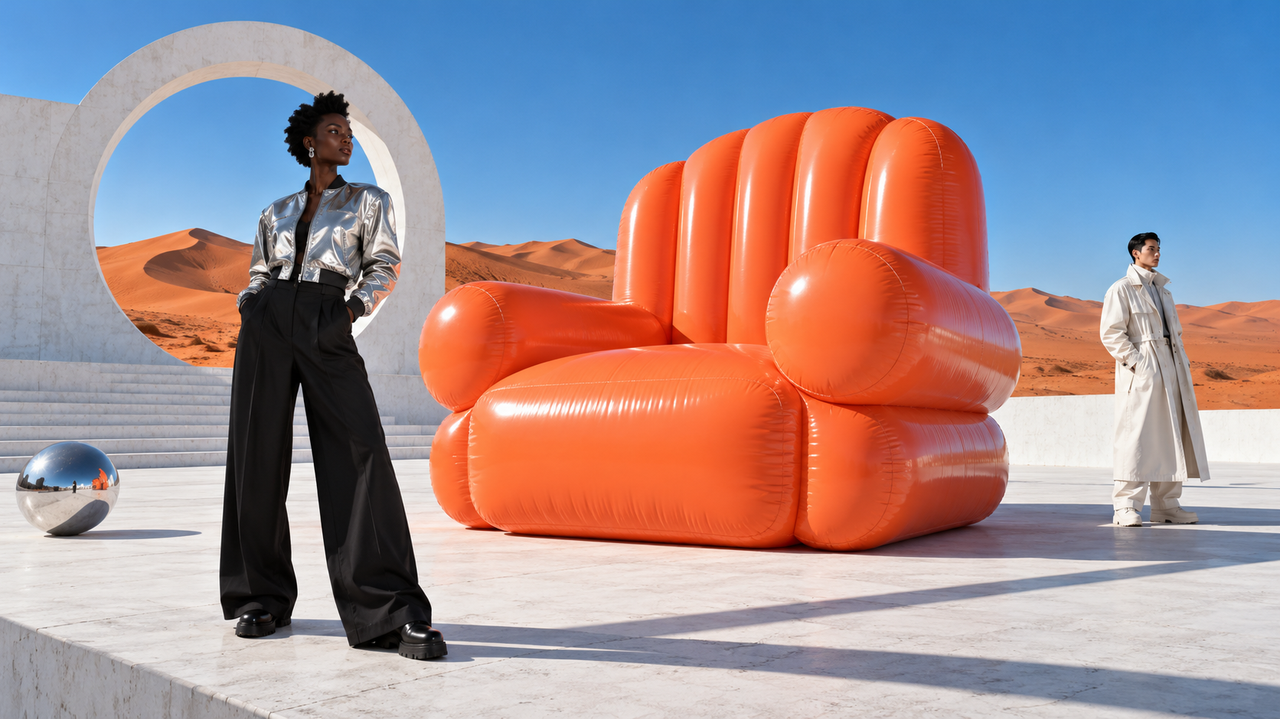
Original: orange inflatable chair
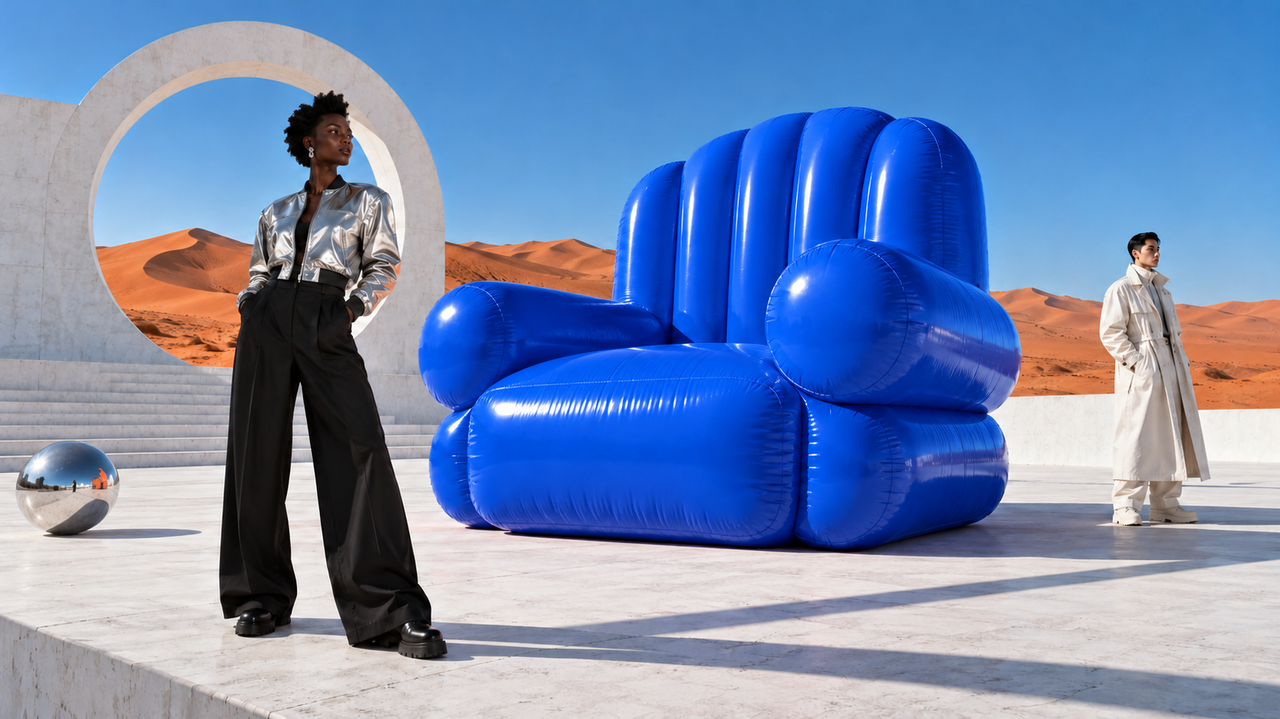
Color variation: blue chair

Material variation: reflective metallic chair
A campaign may need a portrait poster, a landscape banner, and localized headlines. Seedream 5.5 can support image editing, outpainting, aspect ratio adjustment, and reuse of separated assets.
The example below adapts a 3:4 creative into a 16:9 redesign. For a similar request, explain how the layout should change:
Adapt this campaign image to a 16:9 layout. Keep the person recognizable and preserve the orange top and campaign colors. Place the headline on the left with clear space around it. Use the exact headline “PLAY WITH POSSIBILITY”.
The goal is to adapt the composition for the placement. Check the final headline, brand assets, product details, and any promotional terms before distribution. Improved text rendering still benefits from a final editorial pass.
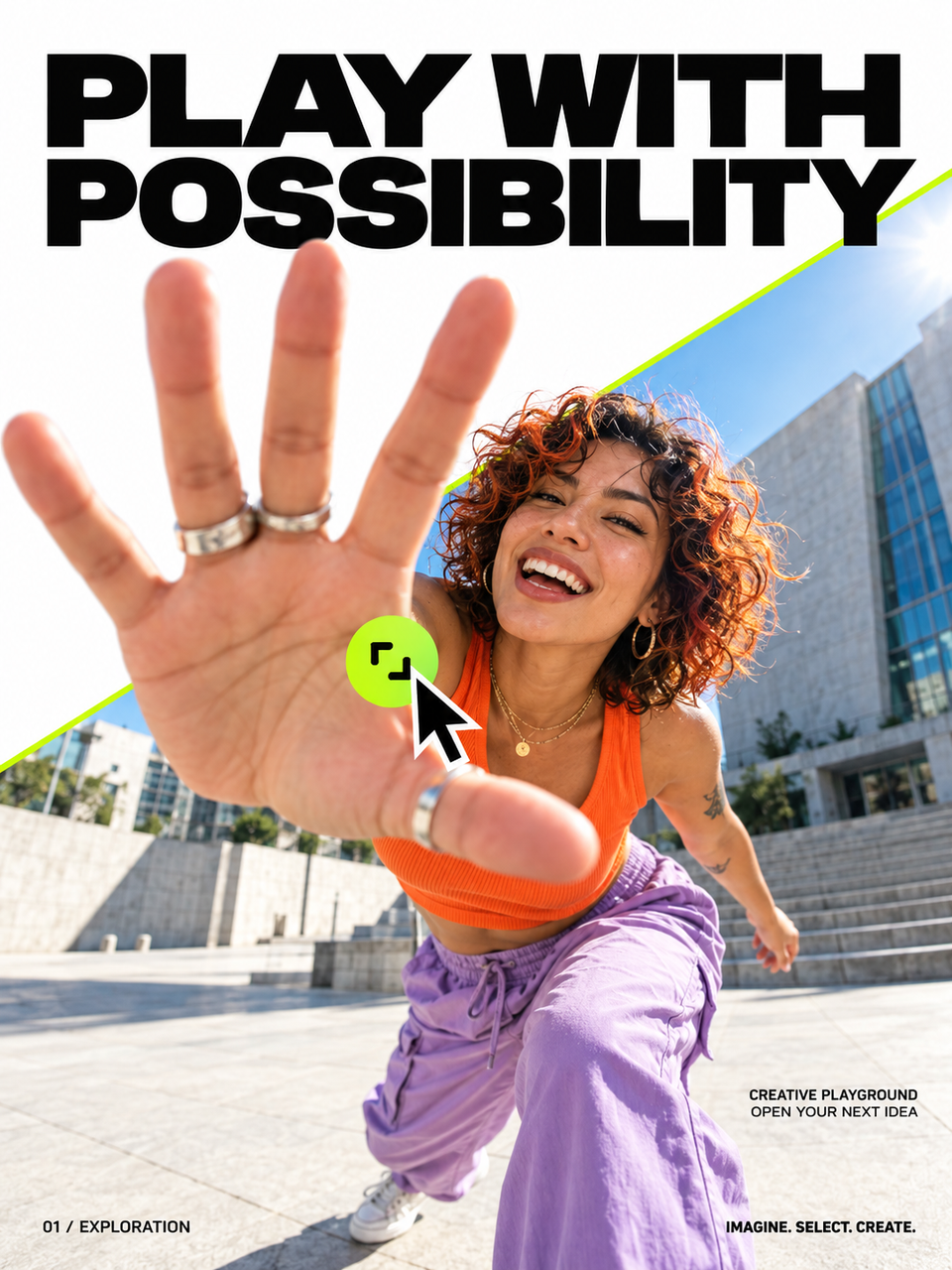
Original 3:4 campaign creative
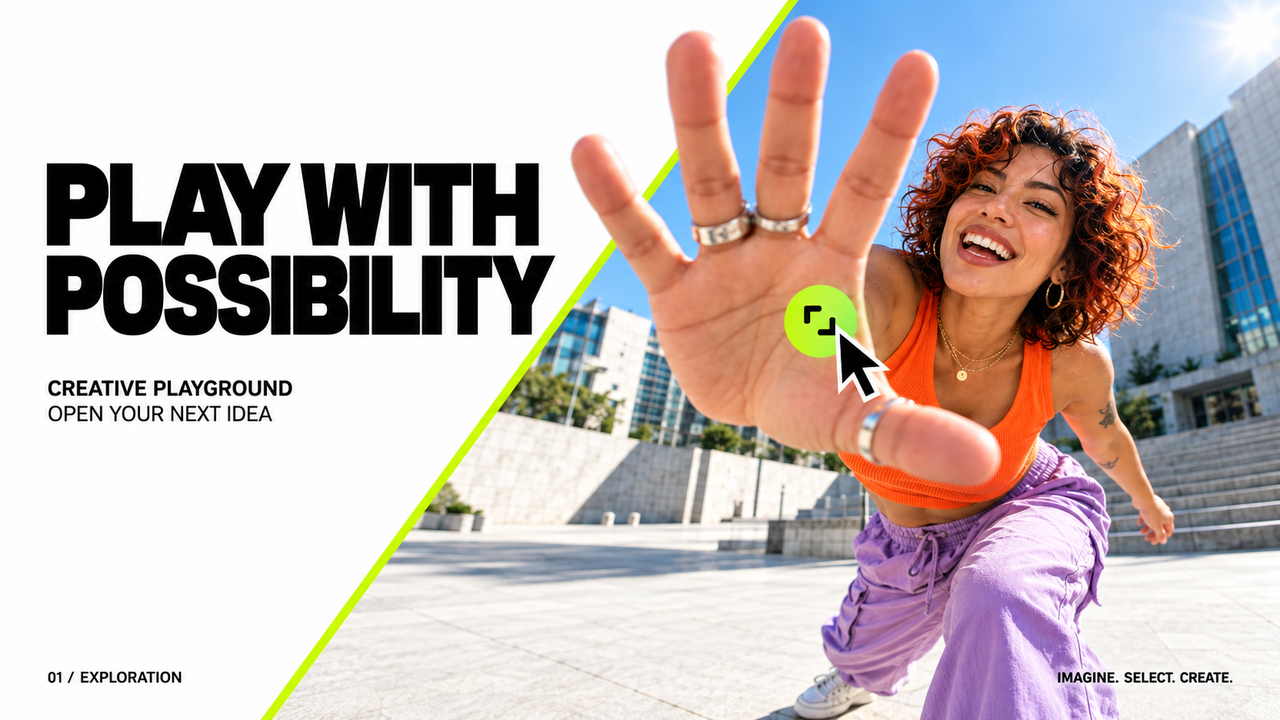
Adapted 16:9 campaign layout
Character development involves repeated decisions about costumes, props, expressions, and environments. Multi-turn editing provides a way to explore those changes while asking the model to retain a recognizable character.
For example:
Add a small leather satchel to the character’s left hip. Preserve the face, hairstyle, outfit colors, pose, and illustration style. Keep the full character visible.
Native RGBA output can supply characters or props for composition. Separated layers can provide components for downstream 2.5D animation or scene assembly. Animation remains a downstream production step; the features discussed here concern image generation and editing.
Maintain a reference sheet and inspect important details across revisions, including facial features, costume motifs, and accessory placement.
Game characters, props, and scene assets.
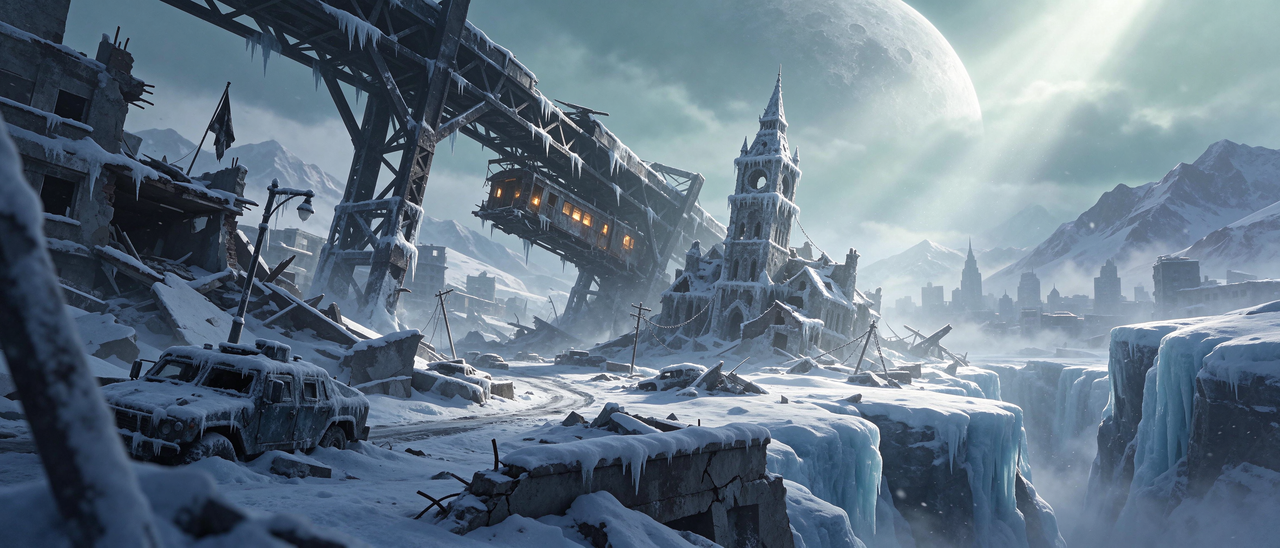
Snow-covered ruins beneath a giant moon
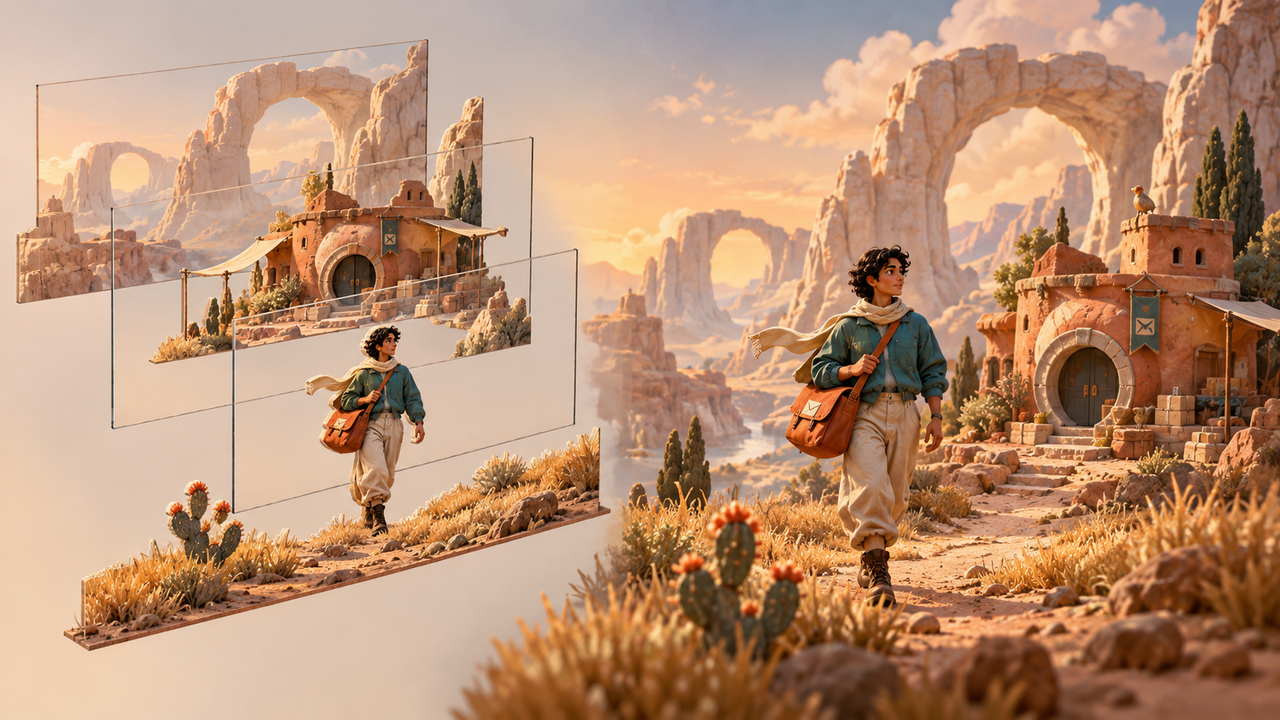
Layered composition: foreground, character, architecture, and background
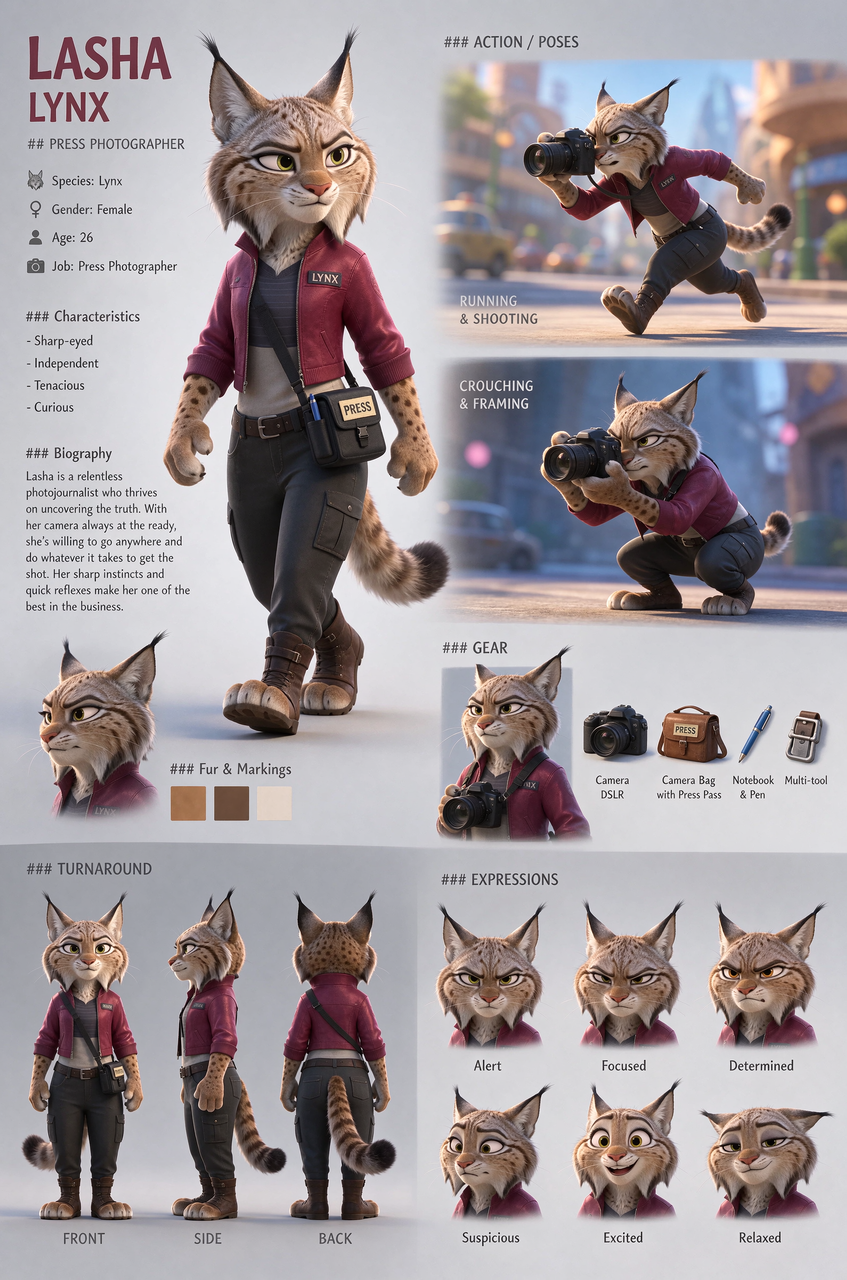
Character sheet: turnaround views, expressions, poses, and equipment
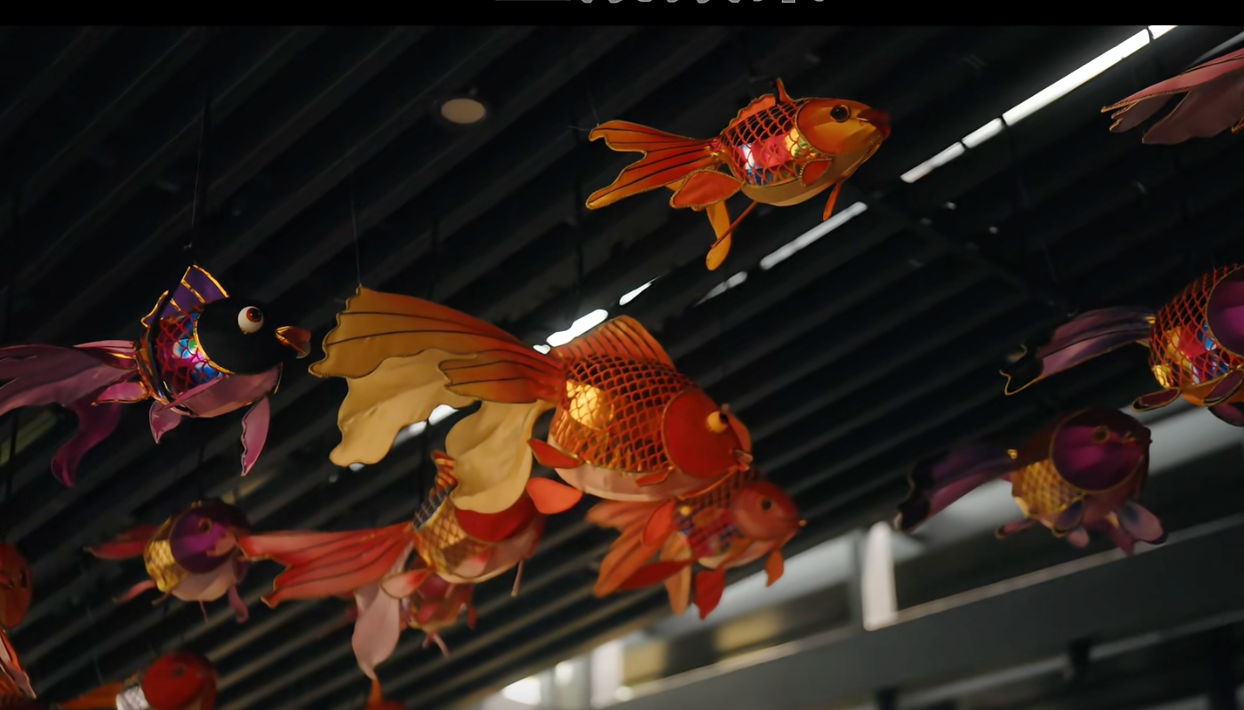
Before effects: an indoor fish-lantern scene
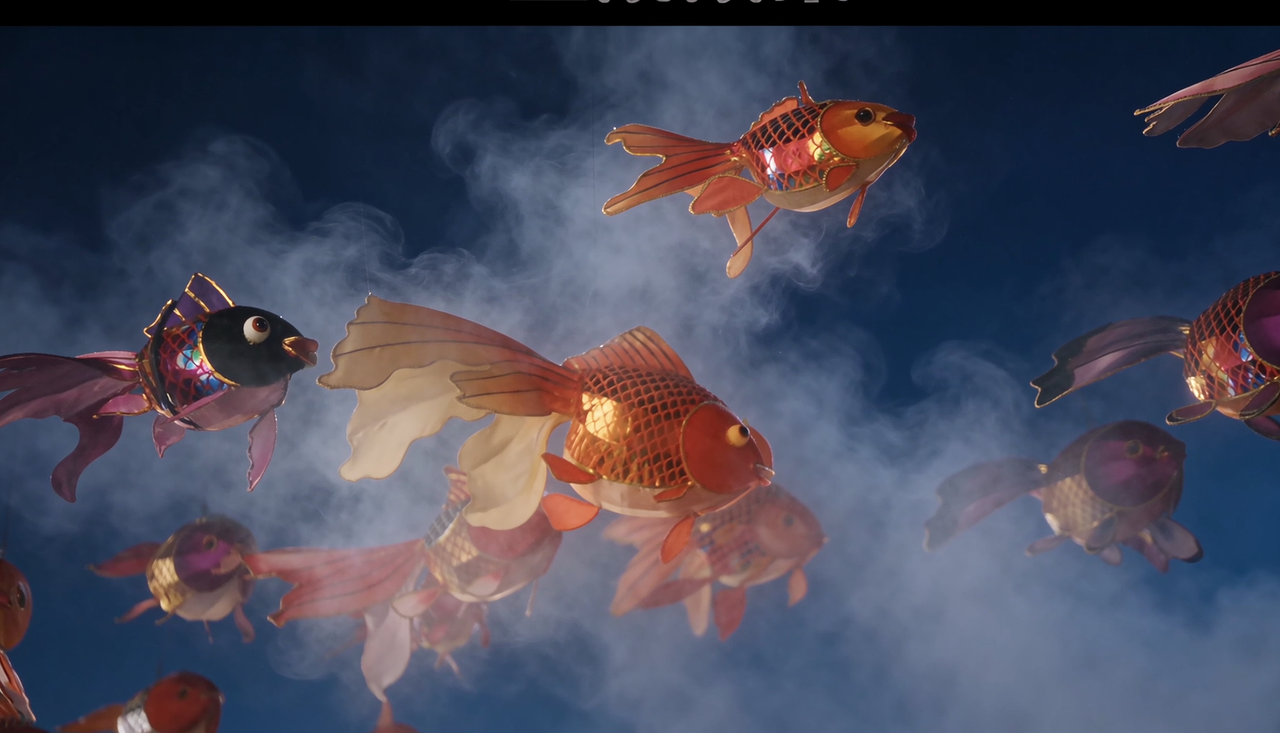
After effects: mist and a night-sky atmosphere
Interior concepts are well suited to targeted requests: try a different sofa fabric, replace a lamp, or change the wall color while keeping the room layout recognizable.
For example:
Change only the sofa upholstery to warm beige linen. Preserve the sofa shape, window positions, floor material, camera angle, and daylight direction.
A useful sequence is to settle the layout first, then explore materials and smaller furnishings. This makes each revision easier to assess. Generated visuals can support concept discussions; product dimensions, material specifications, and installation details still need their own confirmation.
Revise the lamp, cushion, and rug within the same room.
Seedream 5.5 is planned to arrive on Zopia on the evening of November 12, 2026, Singapore time. Once it becomes available, start with a specific task and use the options exposed by the integration.
Choose a starting point. Write a text prompt for a new image or provide a reference for an editing task.
Define the deliverable. Specify the subject, composition, aspect ratio, and exact text where relevant.
Make the first change explicit. Name the object or region to edit and the details to preserve.
Refine in smaller rounds. Keep each request understandable on its own.
Plan asset reuse. Where available, use transparent output or layer separation for downstream design.
Review the final result. Inspect product details, typography, edges, and consistency before export or distribution.
When using multiple references, explain their roles. For instance, one image might define the product shape, another the color palette, and a third the composition.
This workflow follows the prompt guidance. Interface labels and the availability of individual controls will depend on the released Zopia integration.
Zopia’s Seedream 5.5 launch promotion will run for 30 days from the model’s availability on the platform. During the offer, Seedream 5.5 usage will be priced at 60% of Zopia’s standard rate, equivalent to 40% off.
The exact usage price and activity start and end times will be shown on Zopia when the model becomes available. Consult those details when estimating the cost of your workflow.
The discount described here is Zopia’s launch offer. It should not be read as a published BytePlus API price.
Plan your first test: choose one real creative task—a product variation, a transparent character asset, or a poster adaptation—and compare the resulting files with what your next production step needs.
Explore Zopia ahead of the Seedream 5.5 launch.
The main features are more consistent multi-turn image editing, native RGBA transparency, layer decomposition, improved realism and reference blending, and more accurate text rendering.
It supports repeated, targeted edits to an existing image, with improved consistency in the subject and untouched areas. Write each request with a clear change and explicit preservation instructions, then inspect the result before the next round.
The model specifications support native RGBA generation for text-to-image and image-to-image tasks, with PNG output available. Check that your application exposes transparent output and that the downloaded PNG retains its alpha channel.
The maximum is 100 output PNG images in total: one base image plus up to 99 layers. Available settings and the actual output depend on the integration and the source image.
The documented output is alpha-enabled PNG layers, with structured text data available separately through text recognition. Native PSD or Figma export is not established by these specifications.
Start with a focused task such as a product color variation, a transparent character or product asset, a campaign layout adaptation, or an interior material change. These make the result easier to assess against a clear brief.
Availability is planned for the evening of November 12, 2026, Singapore time (UTC+8). Check Zopia for the actual launch status and available controls.
Zopia’s launch offer lasts 30 days from platform availability. Seedream 5.5 usage will be priced at 60% of the platform’s standard rate, equivalent to 40% off. Exact prices and activity times will be shown on Zopia.
The Seedream 5.5 demo images and videos in this article are sourced from ByteDance’s product documentation and used with permission to illustrate model features and use cases. All rights remain with their respective owners.
Start creating professional AI videos with Zopia
Get Started Free